Submission Activity Analytics
Submission Activity Analytics shows submission activity across your team, including volume, workflow state The workflow state describes the current stage in a workflow as a result of the last action taken on a record. For example, a record might have the workflow state "Dispatched". progress, and breakdowns by form and user. Use it to see where work sits in the workflow and to drill into individual form submissions.
-
Submission Activity Analytics inherits your TrueContext permissions, you only see form submissions you have access to.
-
The dashboard shows a snapshot of data that refreshes periodically (typically every few minutes). To confirm the current state of a specific form submission, open it directly from the Web Portal.
-
The dashboard displays all dates and times in your local time zone.
-
The dashboard shows at least the last two years of submissions, and may show more. Only the most recent two years are guaranteed to be available.
Available on the Intelligent and Elite tiers:
Contents
Access Submission Activity Analytics
-
Sign in to the Web Portal.
-
Select Data & Analytics.
-
Select Submission Activity Analytics.
Dashboard Sections
Filters
Use the filter panel to display specific data in every section of the dashboard.
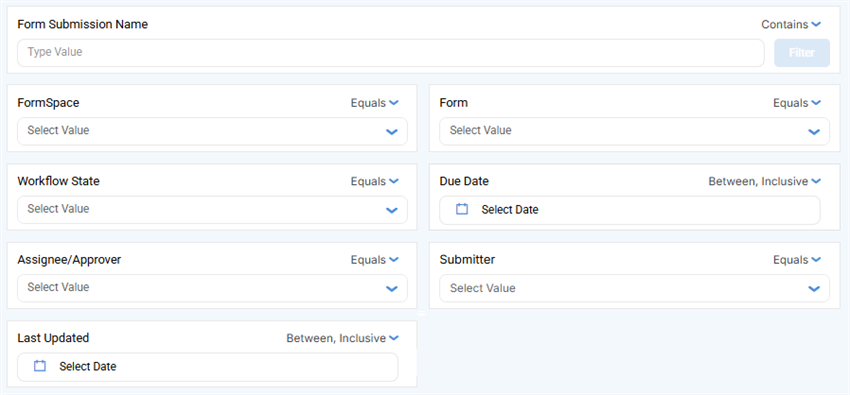
| Filter | Instructions |
|---|---|
| Form Submission Name | Search by name, using operators such as Contains or Equals. The filter matches text as a single string. Select Filter to apply. |
| FormSpace | Select one or more FormSpaces. |
| Form | Select one or more forms. |
| Workflow State | Select one or more workflow states. |
| Due Date |
Search within a date range, Choose an operator such as Before, After, or Between, Inclusive. For range operators, you have the option to select a quick range such as Today, Last 7 Days, or This month. The default operator is After or on. Note:Dates and times reflect your local time zone. |
| Assignee/Approver | Select one or more owners. The filter options include both assignees and approvers. |
| Submitter Username | Select a submitter. This is the last user to submit the record from a device. Web portal approvers are not included in this filter. |
| Last Updated |
Search within a date range. Choose an operator such as Before, After, or Between, Inclusive. For range operators, you have the option to select a quick range such as Today, Last 7 Days, or This month. Updates include form submissions, dispatches, transfers, edits, and edit requests. Note:Dates and times reflect your local time zone. |
Note:To clear a filter, clear each option you selected.
Submissions by Workflow State (Counts)
These tiles show form counts across workflow states.
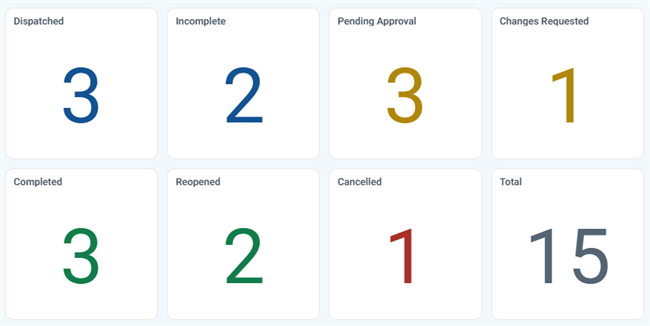
Each tile is color-coded by workflow phase:
| Color | Indicates | Workflow states |
|---|---|---|
| Blue | Work has not yet been completed. | Dispatched, Incomplete |
| Amber | Work is in the approval process. | Pending Approval, Changes Requested |
| Green | Work is complete. | Completed, Reopened |
| Red | Work is cancelled and needs supervisor attention. | Cancelled |
Workflow State Details
| Workflow State | Description |
|---|---|
| Dispatched |
The record was dispatched to a field technician. The record remains in this state until a field technician submits, declines, or transfers it. |
| Incomplete | A field technician transferred an incomplete TrueContext Teamwork-enabled record. The record might be assigned to another technician or available for a technician to claim or a dispatcher to reassign Assigning and reassigning control which users are responsible for dispatched records. A dispatcher with the "Can Manage Assignments" FormSpace permission can assign a record to a user or group and reassign it if the original assignee is unavailable. Field users can also claim unassigned records from the Group Inbox.. |
| Pending Approval | A field technician submitted a record that requires approval. Any user in a group with the Can Approve FormSpace FormSpaces are where forms are stored and organized in the TrueContext Web Portal. A TrueContext Team may have multiple FormSpaces, depending on their needs. Admins can set FormSpace permissions to control which users have access to the forms in that FormSpace. permission can claim and review the record. This workflow state is specific to records with an Approval Workflow configured. |
| Changes Requested | A supervisor chooses to Request Changes to the submitted record as part of an Approval Workflow. |
| Completed | A field technician submitted a completed record. This includes records that have been corrected and records approved through an Approval Workflow. |
| Reopened | A supervisor sent a completed record back to a field technician to make corrections. |
| Cancelled | A field technician declined the record after a dispatcher or the system dispatched it to them. A cancelled record can be reassigned to another user. |
Chart options

Charts have an options menu in the top-right corner. Depending on the chart, you can:
| Icon | What it does |
|---|---|
| Column Settings | Choose which columns appear. |
| Sorting | Sort the chart data. |
| Chart Selection | Change the chart type. |
| Fit to panel | Resize the chart to fit its panel. |
| Filters | Choose which filters affect this chart. By default, global filters are applied, but chart level filters can be applied separately. |
| More options (three dots) |
Open a menu to download the chart as a CSV, Excel, PDF, or JPG file. To export the whole dashboard, go to Export dashboard data. |
Submissions by Month
| Description |
Shows total form submissions by month. Use this section to spot volume trends over time. |
| Additional Functionality | Select a month to break it down by form, user, or workflow state. Use Column Setting in the chart options to change how submissions are grouped by date. |
Submissions by Workflow State (Chart)
| Description |
Shows the distribution of form submissions across workflow states as a chart. It mirrors the Submissions by Workflow State (Counts) totals and uses the same color coding. |
| Additional Functionality | Select a workflow state to see it broken down by month. |
Submissions by User (Top 50)
| Description |
Shows form submission count, by user, in descending order. Use this view to review activity and workload distribution across your team. |
| Additional Functionality | Select a user to see their submissions by month. |
Submissions by Form (Top 20)
| Description |
Shows form submission count, by form, in descending order. Use this view to identify your most active forms. |
| Additional Functionality | Select a form to see its submissions by month. |
Submission Details table
| Table Example | 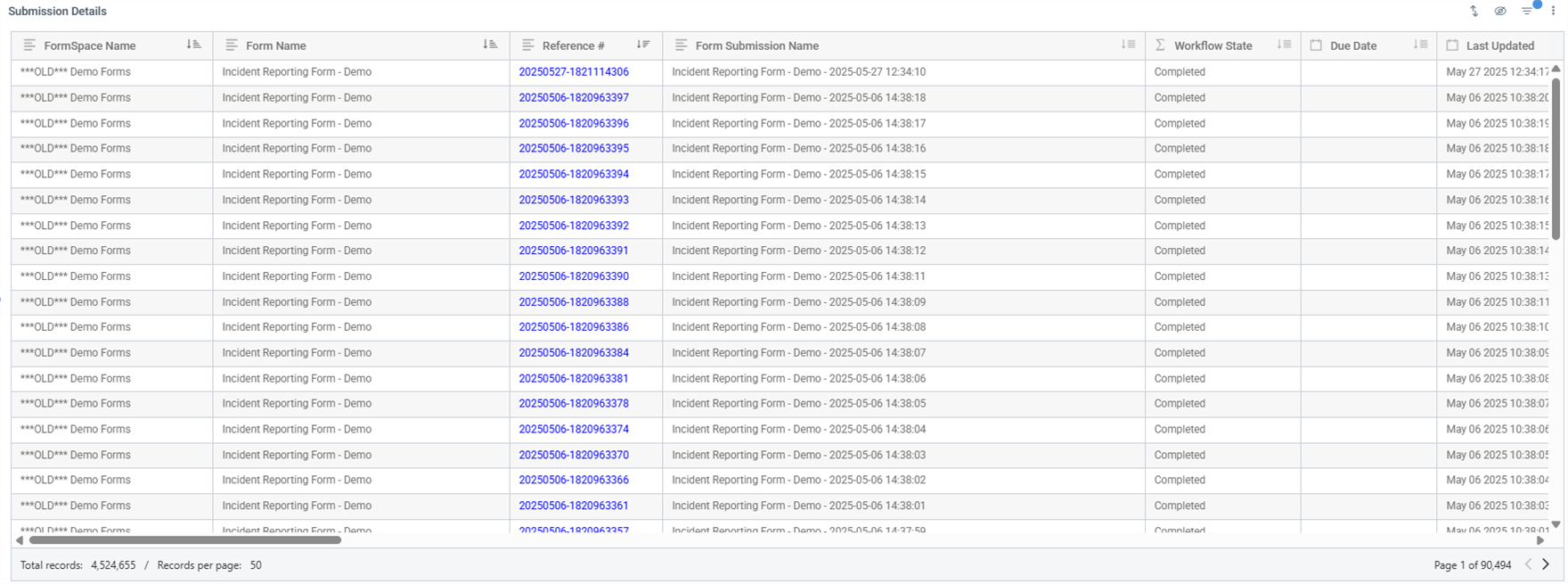
|
| Description |
Lists individual form submissions. Add/remove, reorder, or resize columns, sort the list, and open any form submission to see its complete details. |
| Additional Functionality |
Sort the submission list
Note:You can sort by a column even if it isn't currently shown in the table. Add, remove, or reorder columns
Open a form submission Select a reference number in the Reference # column. The form submission details page opens in a new browser tab. |
Data Dictionary
- Note:
-
Dates show in your local time zone.
-
A blank cell means the column does not apply to that submission.
-
The column picker lists columns alphabetically by default.
| Column | Description | Related help topic |
|---|---|---|
| Approval Date | The date and time the approval decision was made. Empty until the submission is reviewed. | Approve Submitted Records |
| Approval Notes | Notes the Approver added when approving the submission or requesting changes. | Approve Submitted Records |
| Approver User ID | The unique identifier of the Approver. | Approval Workflows |
| Approver Username | The username of the person who approved the submission or requested changes. | Approval Workflows |
| Assignment Scope | How the submission is assigned: to one person (User), shared across a group (Group), or unassigned (FormSpace). | Dispatch records to a group |
| Completion Result The completion result describes the outcome of a finalized record. It displays as part of the record's status, after the workflow state. For example, a record that passed an Approval Workflow shows "Completed (Approved)", and a record that was edited and resubmitted shows "Completed (Corrected)".
|
The outcome of the approval review: Approved or Corrected. | Approval Workflows
Form Submission Workflow Status and States |
| Created | The date and time the submission was first created. Set once and never changes. | — |
| Created By User ID | The unique identifier of the user who created the submission. | View Form Submissions in the Web Portal |
| Data Flow State A data flow state describes how data from a dispatched or submitted record moves between the Web Portal and the Mobile App. For example, a record might have a data flow state of "Downloaded".
|
How data from a dispatched or submitted record moves between the Web Portal and the Mobile App. This is separate from the Workflow State. | Form Submission Workflow Status and States |
| Data Record ID | The internal identifier of the submission record. Most users should use Reference Number instead. | Where to find the reference number |
| Dispatch The term "dispatch" refers to the act of sending a form to a mobile user or customer. Typically, a dispatched record includes some information pre-filled to give the recipient context for the work to be done. Dispatch can be manual or automated (using a Dispatch Data Destination or the TrueContext REST API). Due Date
|
The date and time by which a dispatched submission must be completed. | Dispatch metadata |
| Dispatch Geo Altitude | The altitude (in metres) of the dispatch location. | Dispatch metadata
Geolocation Data |
| Dispatch Geo Latitude | The latitude of the dispatch location. | Dispatch metadata
Geolocation Data |
| Dispatch Geo Longitude | The longitude of the dispatch location. | Dispatch metadata
Geolocation Data |
| Dispatch Notes | The instructions the Dispatcher provided to the recipient at dispatch. | Dispatch metadata |
| Dispatch Priority | The priority assigned at dispatch: Low, Medium, High, or No Priority. | Dispatch metadata |
| Dispatch Received on Device | The date and time the dispatch was received on the recipient's device. | Dispatch a form to a user |
| Dispatched At | The date and time the submission was dispatched. | Dispatch a form to a user |
| Dispatcher User ID | The unique identifier of the Dispatcher. | Dispatch a form to a user |
| Dispatcher Username | The username of the person who dispatched the submission. | Dispatch a form to a user |
| Edited | The edit status of the submission: whether it was sent back for corrections and resubmitted. | Form Submission Corrections |
| Entry Timestamp (UTC) | The date and time the user finished the form on their device, in UTC. | Form Submission Timestamp Fields |
| Form ID | The internal identifier of the form used to create the submission. | Set Up Form Properties |
| Form Name | The name of the form used to create the submission. | Set Up Form Properties |
| Form Submission Name | The name of the form submission. | Set Up Form Properties |
| Form Type | The type of form used: standard or web (Customer Feedback). | Customer Feedback (web) forms |
| Form Version | The version of the form used to create the submission, matching the version shown in the form's version history. | Form Versions |
| FormSpace ID | The internal identifier of the FormSpace that contains the form. | Managing FormSpaces |
| FormSpace Name | The name of the FormSpace (folder) where the form is located. | Managing FormSpaces |
| Group Owner Name | The name of the group the submission is assigned to, when it is group-assigned. | Dispatch records to a group |
| Last Updated | The date when the record was last worked on. | — |
| Assignee/Approver ID | The ID of the person currently responsible for the submission (the Assignee). May differ from the Submitter. | |
| Assignee/Approver Username | The username of the person currently responsible for the submission (the Assignee). May differ from the Submitter. | |
| Passthrough | Indicates a Data Passthrough submission that bypasses the normal dispatch workflow. | Enable Passthrough on Forms |
| Processing Completed | The date and time the server finished processing the data. | Form Submission Timestamp Fields |
| Processing Started | The date and time the server began processing the data. | Form Submission Timestamp Fields |
| Received For Edit | The date and time the Submitter opened the change request on their device. | Form Submission Corrections |
| Reference Number | The unique reference number for the submission. Select it to open the submission. | Where to find the reference number |
| Sent For Edit | The date and time an Approver sent the submission back for corrections. | Form Submission Corrections |
| Submission Group ID | The identifier of the submission group this record belongs to, when it is group-assigned. | Dispatch records to a group |
| Submission Language | The language and locale the submission was completed in (for example, en_US). | Multi-Language Forms |
| Submitter User ID | The unique identifier of the Submitter. | View Form Submissions in the Web Portal |
| Submitter Username | The username of the person who completed and uploaded the form. | View Form Submissions in the Web Portal |
| Upload Completed | The date and time the form data reached the server. | Form Submission Timestamp Fields |
| Upload Started | The date and time the upload started (data left the device). | Form Submission Timestamp Fields |
| Workflow Initiator ID | The identifier of the submission that started this workflow chain. Use it to trace approval and edit chains back to the original submission. | Form Submission Workflow Status and States |
| Workflow State | The current stage in a workflow as a result of the last action taken on the record (for example, Dispatched or Pending Approval). | Form Submission Workflow Status and States |
| 一LEGACY一 Data State (use Data Flow State) | Legacy, simplified data state kept for backward compatibility. Use Data Flow State instead. | Form Submission Workflow Status and States |
| 一SYSTEM USE ONLY一 isDeleted | Indicates whether the record has been deleted. Intended for system use; deleted records are normally excluded from the dashboard. | — |
| 一SYSTEM USE ONLY一 Workflow State (Numeric Sort) | A system value used to sort Workflow States numerically. Use Workflow State for a readable value. | Form Submission Workflow Status and States |
| 一SYSTEM USE ONLY一 Workflow State (Unformatted) | The raw, unformatted Workflow State value, intended for system use. Use Workflow State for a readable value. | Form Submission Workflow Status and States |
Export dashboard data
Export the dashboard's data as a file, either once or on a repeating schedule.
The export contains the data that the dashboard uses. To export the answers in individual form submissions, use a CSV export of form submissions instead. Dashboard exports are separate from scheduled CSV exports of form submissions.
Export the data once
Create a single export of the dashboard's data and download it as a file.
-
On the dashboard toolbar, select the download icon.
Result: A menu of export formats opens.
-
Select a format: CSV, PDF, or Excel.
Note:The CSV format downloads as a ZIP file that contains the CSV file. To get a CSV file directly, use the Dataset format.
Result: The export dialog for that format opens.
-
Choose which version of the dashboard to export. To export your last saved version, select Export latest saved version. To include changes you haven't saved yet, select Export unsaved version.
-
In File Name, enter a name for the file. To add the export date and time to the name, select Concatenate Date and Time to the File Name.
-
Select Export Now.
Result: The export runs in the background. The Exporting menu on the dashboard toolbar shows the progress of each export. When the export finishes, the file downloads to your computer.
Tip:Exports of large dashboards take longer to finish. If you need the same data regularly, schedule the export so the file arrives by email, ready when you need it.
Export selected columns
Use the Dataset format to choose exactly which columns to export, and in what order. The export is a CSV file. You can't schedule a Dataset export.
-
On the dashboard toolbar, select the download icon, then select Dataset.
Result: The Export Dataset dialog opens.
-
In File Name, enter a name for the file. To add the export date and time to the name, select Concatenate Date and Time to the File Name.
-
In Columns, select each column to export. To find a column, use Search. To export every column, select Add All Columns.
Result: The columns you select appear in Columns to export.
-
(Optional) To change the column order, drag the columns in Columns to export.
-
Select Export Now.
Result: The export runs in the background. When it finishes, the file downloads to your computer.
Schedule a recurring export
Schedule an export to send the dashboard's data by email at set times, such as every Monday morning.
-
On the dashboard toolbar, select the download icon, then select CSV, PDF, or Excel.
Result: The export dialog for that format opens.
-
Choose which version of the dashboard to export. To export your last saved version, select Export latest saved version. To include changes you haven't saved yet, select Export unsaved version.
-
In File Name, enter a name for the file. To add the export date and time to the name, select Concatenate Date and Time to the File Name.
-
To turn on scheduling, select On.
Result: The scheduling options appear.
-
In Date and Time, set when the first export runs, in the time zone shown in Time.
-
To send the export more than once, in Occurrence, select Repeats, then set:
- Repeat Every: Enter a number and choose a unit of time.
- Ends: Select Never, On a date and time, or After a number of occurrences.
-
Select Subscribe, then choose who receives the export:
- To receive it yourself, keep Subscribe myself selected.
- To send it to other people, enter each email address in Subscribe Specific People. The field accepts email addresses only, not names.
-
To save the schedule, select Schedule at the bottom of the dialog.
Result: The system confirms your schedule. The export runs at the times you set and goes to every subscriber by email.
Note:Every subscriber receives the same data you have access to. You can subscribe anyone by email address, including people outside your team who don't have access to the dashboard in TrueContext.
Download files and manage schedules
The Download Manager lists every file you export from the dashboard, both one-time and scheduled. Use it to download a file again and to change, pause, or delete a schedule. The Download Manager keeps each file for 7 days, and the Expiration Date column shows when each file expires.
-
On the dashboard toolbar, select List Schedules, next to the download icon.
Result: The Download Manager opens.
-
(Optional) To find a file or schedule, use the Filter By lists or Search. Each scheduled export has its own row, with its frequency in the Schedule column.
-
Choose an action:
- To download a file again, select Download in its row.
- To change a schedule's timing or subscribers, open the options menu (three dots) in the schedule's row, then select Edit Schedule.
- To stop a scheduled export temporarily, open the options menu, then select Pause Schedule. The schedule's name shows (Schedule Paused).
- To resume a paused schedule, open the options menu, then select Edit Schedule. Select Schedule at the bottom of the dialog, then select Restart Schedule and Save.
- To stop receiving a scheduled export yourself, open the options menu, then select Unsubscribe. Other subscribers keep receiving it, and the schedule's name shows (Unsubscribed). To receive it again, open the options menu, then select Subscribe.
- To stop a scheduled export permanently, open the options menu, then select Delete Schedule.
Personalize Your Dashboard
Customize the dashboard to the way you work. Adjust the filters, choose and reorder columns, sort data, and change how charts display. Use the customization bar to save or discard your changes.
Save or discard your changes
Save your changes as a personalized view. Your saved view is restored each time you open the dashboard.
-
To keep your changes, select Save. A message confirms that this overwrites your existing personalized view.
-
To undo changes you haven't saved, select Discard Changes.
Note:Access your saved view at any time by selecting Get Personalized Version in the toolbar.