Audit and Compliance Data
TrueContext automatically captures audit-related data and metadata throughout your workflow. This topic describes the types of audit data available, where to find them, and how to configure additional data collection.
Available on all tiers:
Contents
Audit trail on objects
The Web Portal tracks who created and last updated key objects in your system. This information appears at the bottom right of each object's page in the Web Portal. The audit trail displays the user's first and last name and a timestamp.
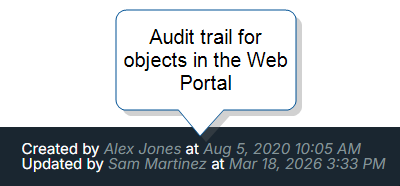
The following objects include audit trail information:
- API Keys
- Connections
 A Connection is an integration point that's used to link a TrueContext Data Source or Data Destination to an external service to import or export data. Data Destinations and Data Sources that share the same external service can also share the same Connection.
- Data Destinations A Data Destination specifies where to send data from a submitted form. You can use Data Destinations to automate data sharing and storage, routing data to a specific service (such as email or cloud storage) in several different formats.
- Data Sources Data sources, also known as "Lookups", are external sources of data that you upload or connect to TrueContext. You can reference this data in a form to populate answers or answer options. Data sources save typing, reduce errors, and make it easy to provide mobile users with only the relevant, most current data.
- Documents
- Forms
- Form Submissions
- FormSpaces
- Groups
- Resources Resources are materials that field technicians can access while they work on records in the Mobile App. A resource might be a Resource Document, like a manual or a floor plan, or a Resource Image, like a schematic or a diagram. Resources are uploaded to a FormSpace and can be referenced in forms or made available in the Resource Library.
- Team settings
- Users
- Webhooks A Webhook is an HTTP endpoint that an external system exposes to receive data automatically. You can configure an HTTP Data Destination to send form submission data or Documents to a third-party system's Webhook URL, such as posting a notification to Slack when a user submits a form.
Form submission metadata in the Web Portal
The form submission details page displays metadata that supports audit and compliance requirements. The following audit-relevant metadata is available:
-
Reference number: The unique identifier for the form submission.
-
Name and username: The name and username of the user who submitted the form.
-
Device identifier: The identifier of the device used to submit the form.
-
Timestamps: Includes the dispatch sent time, dispatch received on device time, submitted on device time, submitted on device (Team TZ) time, processing started time, and processing completed time.
Info:The topic Form Submission Timestamp Fields describes the different timestamps available and how they work.
-
Location: The address, coordinates, and timestamp of where the form was submitted. Includes a link to view the location in Google Maps.
Form submission versions
Form submission A form submission is a dispatched or submitted form. versions are records of all the changes users make to a single form submission.
When the system creates a new version
The system creates a new form submission version A form submission version is a record of the changes a user made to a single Form Submission. The system creates a new form submission version when a form is dispatched, transferred as incomplete (TrueContext Teamwork only), edited, or submitted. each time form submission data changes. Form submission versions provide a way for you to review the data that changed and identify the user who changed it.
The following table describes a workflow initiated by a supervisor dispatching a form.
Note:Users can also start work on a form by opening it from the Forms tab in the Mobile App. In this case, the first Form Submission version is created when the user transfers or sends the form.
| Action | Changes to data? |
Form Submission version |
|---|---|---|
| Dispatch The term "dispatch" refers to the act of sending a form to a mobile user or customer. Typically, a dispatched record includes some information pre-filled to give the recipient context for the work to be done. Dispatch can be manual or automated (using a Dispatch Data Destination or the TrueContext REST API). to mobile user |
Yes | 1 |
| Mobile user transfers incomplete form | Yes | 2 |
| Mobile user claims incomplete form | No | 2 |
| Mobile user transfers incomplete form | Yes | 3 |
|
Supervisor assigns form |
No | 3 |
|
Supervisor unassigns form |
No | 3 |
| Mobile user claims unassigned form | No | 3 |
| Mobile user sends complete form | Yes | 4 |
|
Supervisor sends form for corrections |
No | 4 |
|
Mobile user sends corrected form |
Yes | 5 |
How to view form submission versions
-
Go to
Data & Analytics > Submissions (by Form) > FormName > Continue
or
Forms & Integrations > FormName > Go to submissions
Result: The Web Portal displays the Form Submissions page for the selected form. By default, the Form Submissions page displays form submissions from the last 30 days.
-
Select the Reference #.
Result: The Form Submission Details page opens.
-
Select the reference number, and then select Version History.
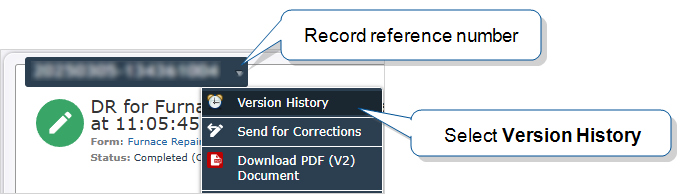
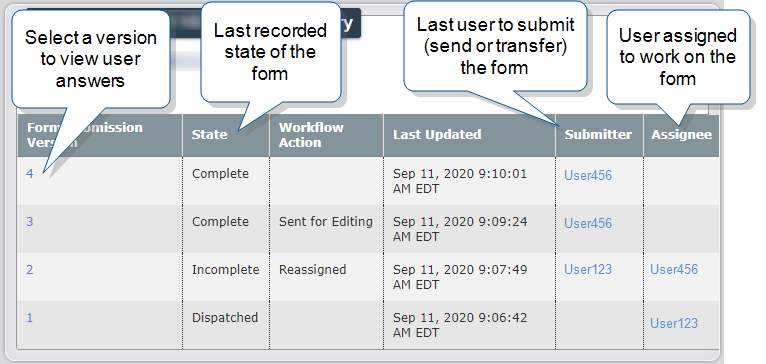
Result: The Form Submission Versions page displays
- a row for each version
- the state of each version
- the user who last submitted (sent or transferred) data for each version, and
- the user assigned to each version.
The following example shows the version history of a completed form.
-
To see the answers provided for a specific form version, select the version number.
Result: The Form Submission Version Details page displays the answers and indicates whether the submitter edited any previous answers.
Identify changed answers
To identify specific changes, open each form version and compare. When a mobile user changes a dispatched or prefilled answer, the Web Portal displays a Corrected label on that question. This indicator also appears for incomplete forms transferred through TrueContext Teamwork TrueContext Teamwork is a feature that enables mobile users to transfer incomplete forms for other users to complete as part of a multi-user workflow. This can be useful for jobs that require someone else's expertise or that span multiple shifts. when a user changes a previously entered answer. It also shows when a Conditional Logic rule changes an answer.
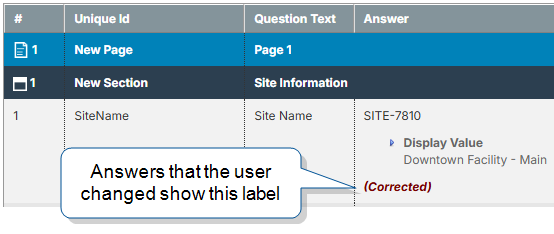
Keep the following in mind:
- If the user doesn’t change a prefilled answer, no indicator appears. The answer looks the same as one the user entered directly.
- To determine whether an unchanged answer was prefilled or entered by the user, compare the current version with an earlier version.
Standard JSON and XML downloads
Metadata available in JSON and XML files
You can download a standard JSON or XML file for any form submission. These files contain detailed metadata useful for audit and compliance purposes.
The standard downloads include:
-
Submission details: Status, workflow state
The workflow state describes the current stage in a workflow as a result of the last action taken on a record. For example, a record might have the workflow state "Dispatched"., data flow state A data flow state describes how data from a dispatched or submitted record moves between the Web Portal and the Mobile App. For example, a record might have a data flow state of "Downloaded"., device submit date, and server receive date. -
Dispatch details: Dispatch date, notes, priority, due date, and coordinates.
-
Form details: Form name, version, identifiers, and FormSpace
FormSpaces are where forms are stored and organized in the TrueContext Web Portal. A TrueContext Team may have multiple FormSpaces, depending on their needs. Admins can set FormSpace permissions to control which users have access to the forms in that FormSpace. information. -
Submitter details: User identifier, username, and display name.
-
Dispatcher details: Dispatcher identifier, username, and display name.
-
Submitter's geo location
Geo Location refers to the capture of location data in a form. A Geo Location question can act as a selector, where the user selects a location on a map, or as a stamp, which automatically captures the device's current location when a form page opens. Location data is classified as Fine (GPS) or Coarse (Network), depending on the accuracy of the source.: Timestamp, coordinates, accuracy, and address. -
Device details: OS type, OS version, and mobile app version.
-
Question-level audit data: For each question, the file includes the username of the last user to modify the answer and the date/time of the modification.
Note:The question-level audit data captures only the most recent modification. It does not include a history of previous answers. To review previous answers, compare form submission versions.
Info:The topic Download Standard XML or JSON Files includes a detailed description of all metadata fields.
How to access standard JSON or XML files
You can access standard JSON or XML files in the following ways:
-
Web Portal: Download the file from the form submission details page. Hover over the arrow next to the reference number, then select Download Standard XML or Download Standard JSON.
-
REST API: Download the file programmatically with the TrueContext REST API. This can be useful for automated or bulk retrieval of the files.
-
Output Documents: Create a JSON or XML output Document and attach it to your form. You can then link the Document to a Data Destination
A Data Destination specifies where to send data from a submitted form. You can use Data Destinations to automate data sharing and storage, routing data to a specific service (such as email or cloud storage) in several different formats. to send it automatically to a third-party system or cloud storage service.
Note:JSON and XML downloads are only available for the latest form submission version. To store a document for each version, set up a Data Destination that triggers for all states. This ensures you have a complete audit record across all versions.
Image stamps
You can configure image questions to stamp audit data directly onto images. You configure this at the question level when you set up your form. Image stamps capture two types of data:
-
Image Properties: The system collects these when the user takes the picture. Image Properties include the date and geo location. The system only collects Image Properties for images taken directly from the camera. Image Properties depend on the device's camera settings. Some cameras don't support them.
-
System Properties: The system collects these when a user submits the completed form. System Properties include the reference number, geo stamp
Geo Location refers to the capture of location data in a form. A Geo Location question can act as a selector, where the user selects a location on a map, or as a stamp, which automatically captures the device's current location when a form page opens. Location data is classified as Fine (GPS) or Coarse (Network), depending on the accuracy of the source., FormSpace name, submitter name, entry timestamp, and form name.
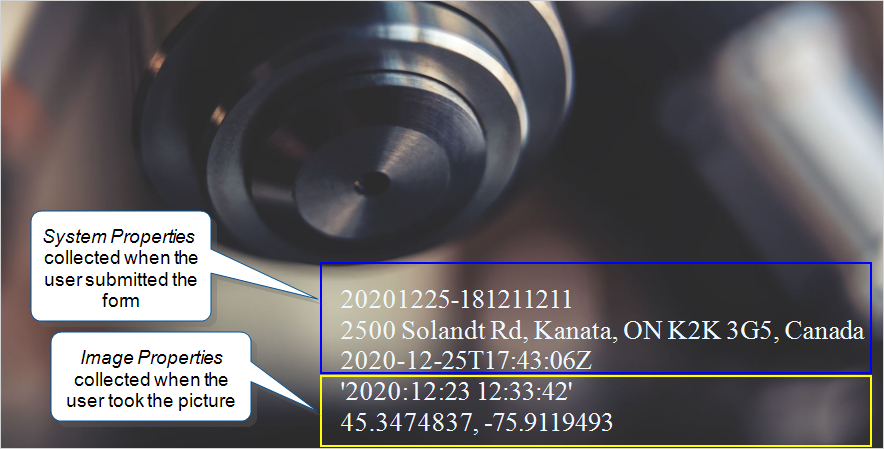
For TrueContext Teamwork-enabled forms, keep the following in mind:
-
The system does not collect System Properties when a user transfers an incomplete form.
-
The system stamps images only when a user submits the completed form. You can't view image stamps until the form is complete.
-
Different users can transfer an incomplete form multiple times. Image Properties reflect who took the photo. System Properties reflect who submitted the completed form.
Info:The topic Stamping Data Onto Images describes how to set up image stamps.
Configure audit data collection
TrueContext captures most audit data automatically. You can configure additional collection with the following options.
- Form-level geo location
-
By default, all forms collect the device geo location when users submit the form. This setting is not visible to the mobile user. The user's device must have location services enabled for the system to capture it.
-
Geo Location Question
-
Add a Geo Location Question with the Geo Stamp Data Type to your form. This captures the user's location when they open the page where the question is located. The system records the location automatically. The user cannot modify it.
-
Date/Time Stamp Question
-
Add a Date/Time Stamp Question to your form to capture when a user opens the page where the question is located. The system records the timestamp automatically. The user cannot modify it.
-
Data Destinations for version tracking
-
To retain a JSON or XML document for every form submission version, create a Data Destination that triggers on all states. Link an XML or JSON output document to the Data Destination. This gives you a stored copy of the audit data for each version change.