Set Up On-Demand Data Sources
To set up an On-Demand Data Source Data sources, also known as "Lookups", are external sources of data that you upload or connect to TrueContext. You can reference this data in a form to populate answers or answer options. Data sources save typing, reduce errors, and make it easy to provide mobile users with only the relevant, most current data., after setting up a Connection, you set up your Data Source and define your parameters. Then, in the Form Builder The Form Builder is the tool that form designers use to create forms. In the Form Builder, accessed from the TrueContext Web Portal, form designers can add and edit pages, sections, and questions, as well as attach data destinations and configure the form's settings., you map the parameters to questions and optionally push data to other questions. This topic describes the basic process to set up an On-Demand Data Source.
Available on the Elite tier:
Contents
Set up the On-Demand Data Source
-
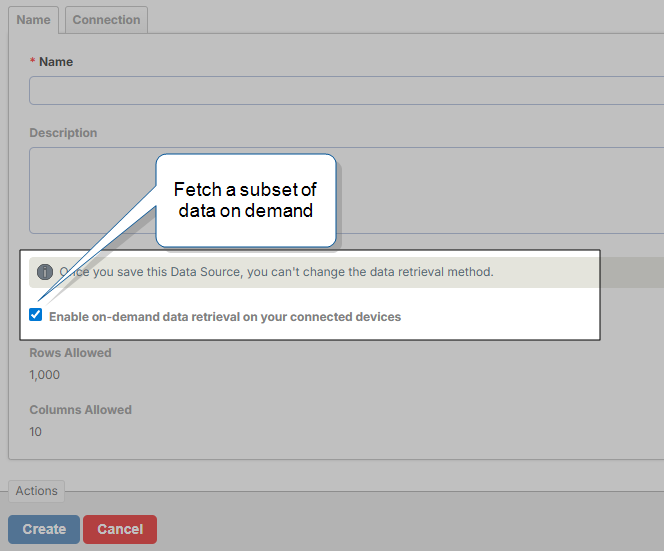
Set up a Salesforce Query Data Source or an HTTP GET Data Source. Select the On-Demand option.
-
On the Connection tab, select an existing connection, or create a new connection to your third-party system. The way you create a connection depends on your Data Source type.
-
For a Salesforce Query Data Source, create a Salesforce Connection.
-
For an HTTP GET Data Source, create an HTTP Connection
-
-
Set up your parameters. The way you set up your parameters depends on your Data Source type.
-
Select Test Fetch. You must complete a successful fetch before you can save the Data Source.
Result: The Web Portal opens a window where you can test the request.
-
In the Test Fetch window, enter valid values for all your parameters. Then, select Fetch.
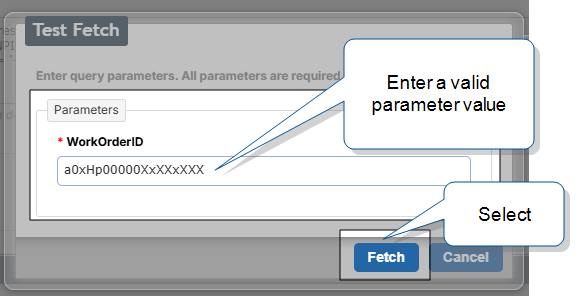
Result: A successful fetch displays a sample of the returned data.
Note:If the fetch is unsuccessful, modify your parameter values and try again.By default, an On-Demand Data Source
An On-Demand Data Source (ODDS) fetches a targeted subset of data from a larger dataset at the moment a field user requests it, instead of storing the data on the TrueContext server. On-demand questions use the values from parameter questions to query the external system, which returns the most up-to-date data. Mobile users must be online to get data from an On-Demand Data Source. can retrieve a maximum of 1000 rows. If your test fetch exceeds the maximum rows, TrueContext truncates the results. Adjust your query to retrieve more specific results. -
Select Create.
Set up parameters in an On-Demand Salesforce Query Data Source
-
Go to the Connection tab. In the Query field, enter your SOQL query.
-
Define the filter parameters in the WHERE clause. In this example, the query defines only one parameter, the
{{WorkOrderID}}.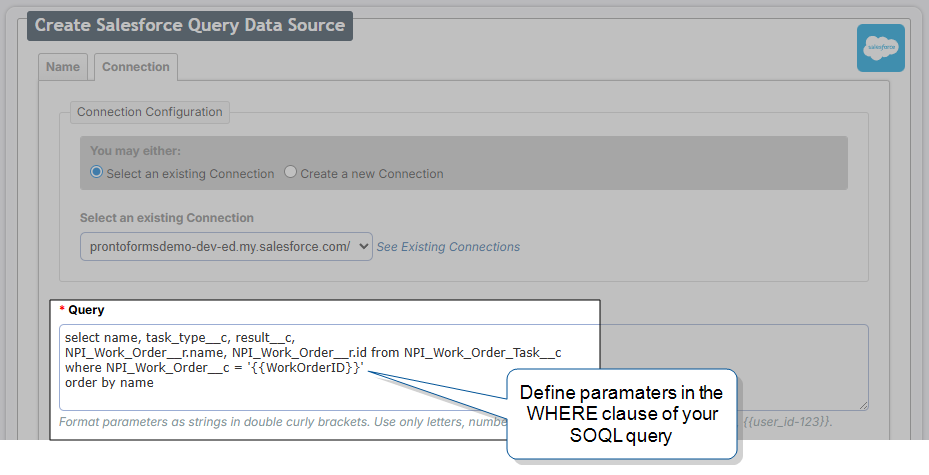
-
Format parameter names as strings in double braces. Use only letters, numbers, hyphens, or underscores.
-
Your query must include at least one and no more than 10 parameters. Each parameter name in the SOQL query must be 255 characters or fewer.
-
The field type in Salesforce dictates whether quotes are needed in the query.
-
Many Salesforce unique identifiers are alphanumeric and should have straight quotes.
-
If the field in Salesforce is a Number type field, then you should specify the parameter without quotes.
-
Info:The topic Set up a Salesforce Query Data Source describes how to set up your Query in more detail.
Set up parameters in an On-Demand HTTP GET Data Source
-
Go to the Connection tab.
-
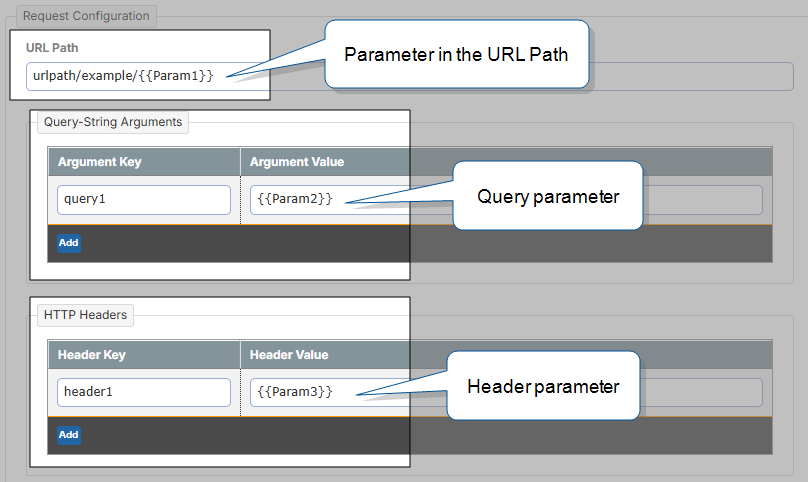
In the Request Configuration section, define your parameters. You can include them as part of the URL Path, as a query-string Argument Value, or as a Header Value.
Tip:Refer to your third-party system’s API documentation for a full description of requirements.
 Note:
Note:-
Format parameter names as strings in double braces. Use only letters, numbers, hyphens, or underscores.
-
You must include at least one and no more than 10 parameters. Each parameter name must be 255 characters or fewer.
-
Enter path parameters in the URL Path field. You can enter query parameters as part of the URL Path, or as key-value pairs in the Query-String Arguments section.
-
Some query parameters require quotes. Refer to your third-party system’s API documentation to make sure you use the right format for parameters.
Info:The topic HTTP GET Data Source describes how to set up the Request Configuration in more detail.
-
Set up your form to fetch data On-Demand
-
In the Form Builder, create questions that provide the parameter values. We refer to these as parameter questions
A parameter question is any question defined in your form that's also used to provide values to an On-Demand Data Source or a Webhook query..You can use any of these single-answer question types for parameter questions:
- Barcode Scanner
- Button Group
- Card List
- Duration Field
- Slider, Stepper
- Text Area
- Text Field
- Dropdown, Radio Button (but not Multiselect)
You'll map these questions to the query parameters when you set up the on-demand questions
An on-demand question is a question in your form that fetches data from an On-Demand Data Source. Similarly to standard Data Sources, these can be Dropdown, Radio Button, and Multiselect questions.. Because of this mapping, the question Unique Identifiers don't need to match the parameters or any values in your third-party system.Note:Remember that the parameter questions provide values to the on-demand question
An on-demand question is a question in your form that fetches data from an On-Demand Data Source. Similarly to standard Data Sources, these can be Dropdown, Radio Button, and Multiselect questions., so they must be placed before on-demand questions. -
Set up the on-demand questions. These are the questions that:
-
Use the On-Demand Data Source.
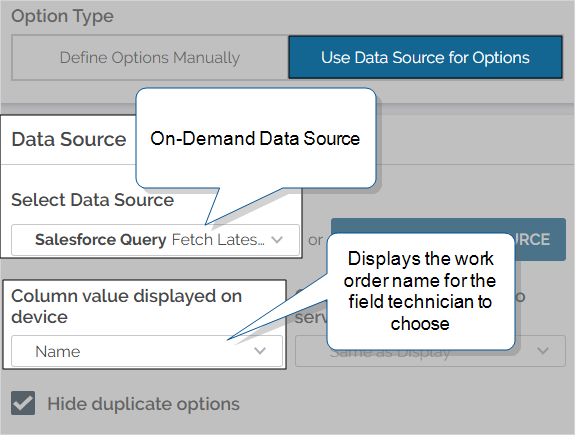
-
Map the query parameters to questions in the form.
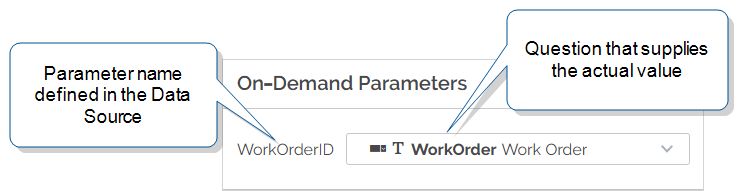
-
Push data to other questions in the form (optional). You do this the same way you would for a standard Data Source.
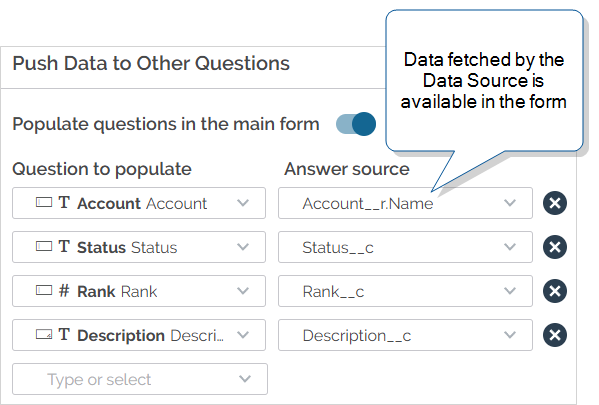
Info:The sectionOn-Demand Data Sources Overview: Data fetch behavior and rules includes information about question types you can use and the number of unique fetches per form.
-
Troubleshoot On-Demand Data Sources
Mobile users must be online for an On-Demand Data Source to fetch data. If the user is online and the Data Source fails to fetch data, it could be because:
-
The Connection has expired. Run a Test Fetch to check if your connection is expired. If the connection is expired, reconnect to your third-party system
-
The parameters don’t match. If you add or remove any On-Demand Data Source parameters, you can break active form versions that use the Data Source. Keep this in mind when you make any updates to an On-Demand Data Source.
-
There is an error in the third-party system. Changes to the external data could result in unexpected behavior. Use the Test Fetch tool in the Web Portal to ensure that you are fetching the right data.