Use an On-Demand Data Source to Fetch Data from a SharePoint List
In this recipe, you configure an On-Demand HTTP GET Data Source Data sources, also known as "Lookups", are external sources of data that you upload or connect to TrueContext. You can reference this data in a form to populate answers or answer options. Data sources save typing, reduce errors, and make it easy to provide mobile users with only the relevant, most current data. that connects to a SharePoint list through Microsoft Graph API. Then, you build a mobile form that uses the Data Source to fetch and display SharePoint list items filtered by a parameter. When a technician selects a site, the form automatically retrieves the open issues for that site from SharePoint and displays them in a Repeatable section A Repeatable Section is a subform that contains a set of related questions. The data captured is “repeating”, because the field user can complete the same subform more than once, which creates multiple entries..
Available on the Elite tier:
Contents
Scenario
A company sends field technicians to customer sites for maintenance and inspections. Before starting work, technicians need visibility into open issues at their site—safety hazards, equipment problems, or access restrictions.
A form designer creates a mobile form that lets technicians select their site on arrival. The form fetches the latest open issues from a SharePoint list. This way, technicians always have current information without having to contact their supervisor or relying on a different app..
To do this, the form designer creates two Data Sources Data sources, also known as "Lookups", are external sources of data that you upload or connect to TrueContext. You can reference this data in a form to populate answers or answer options. Data sources save typing, reduce errors, and make it easy to provide mobile users with only the relevant, most current data.. The first is a standard HTTP GET Data Source that populates the site dropdown. The second is an HTTP GET On-Demand Data Source that retrieves issues filtered by the selected site. When a technician selects a site, the form passes the site ID as a parameter to the On-Demand Data Source An On-Demand Data Source (ODDS) fetches a targeted subset of data from a larger dataset at the moment a field user requests it, instead of storing the data on the TrueContext server. On-demand questions use the values from parameter questions to query the external system, which returns the most up-to-date data. Mobile users must be online to get data from an On-Demand Data Source.. The On-Demand Data Source sends a query to the Microsoft Graph API that applies filters directly to the SharePoint Issues list. This way only the matching records are retrieved and returned.
Prerequisites
-
You must be a TrueContext Admin user.
-
You must have an HTTP Connection to Microsoft Graph set up.
-
Create two SharePoint lists:
-
Create a Sites list that has site information. You’ll use this list to set up a standard HTTP GET Data Source. Make sure the list includes the following columns: Title, SiteId, CustomerId, Status, Region, City, and StateProvince.
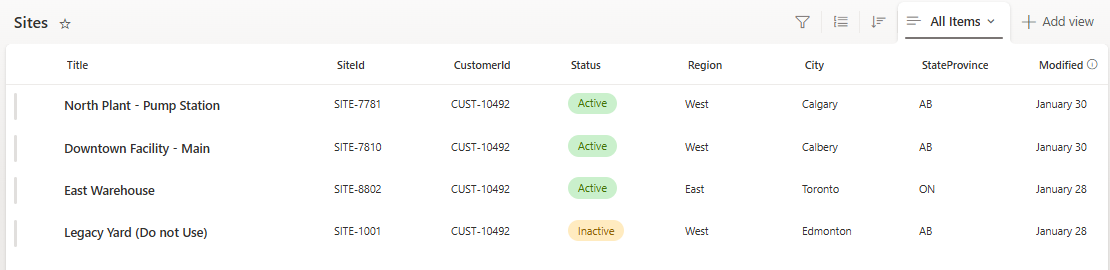
-
Create an Issues list that has open issues related to a given site. You’ll use this list to set up an On-Demand HTTP GET Data Source. Make sure the list includes the following columns: Title, IssueId, CustomerId, SiteId, IssueType, Severity, Status, and Summary.
Note:In this example, the SiteId column is a Lookup
Lookup questions are options-based questions that "look up" the list of options from a Data Source. These include Dropdown, Radio Button, and Multiselect questions. column. This keeps the Issues list linked to the Sites list in SharePoint.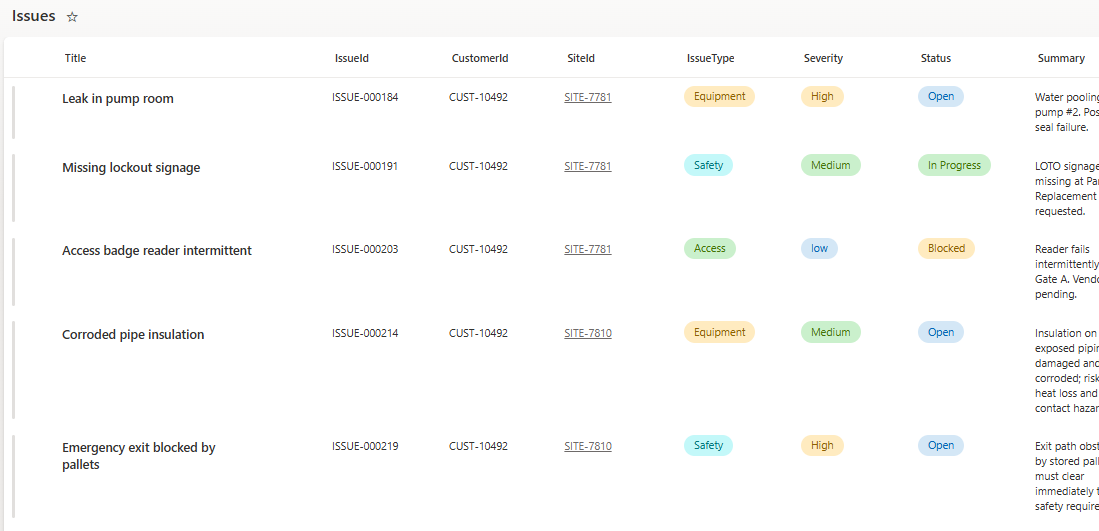
-
-
Index any SharePoint list columns that you plan to use as query filters (In SharePoint, go to List Settings > Indexed columns). For this example, index the column
SiteIdfrom the Issues list.Warning:If you don’t index the column, the API call fails.
High-level process
| Step | Action | Result |
|---|---|---|
| In the TrueContext Web Portal: | ||
| 1 | Create a standard HTTP GET Data Source | A Data Source that retrieves a list of sites from SharePoint. This populates the Site Name Question in the form. |
| 2 | Create an On-Demand HTTP GET Data Source | An On-Demand Data Source that retrieves a list of issues from SharePoint filtered by the selected site. This populates the Push Issues Question in the form. |
| In the Form Builder The Form Builder is the tool that form designers use to create forms. In the Form Builder, accessed from the TrueContext Web Portal, form designers can add and edit pages, sections, and questions, as well as attach data destinations and configure the form's settings.: |
||
| 3 | Add a Site Name parameter question to the form | A Dropdown Question that lets the technician select their site. The options are populated by the list of sites from SharePoint. When the technician selects a site, the Site ID triggers the On-Demand Data Source and is pushed to the Push Issues Question. |
| 4 | Add an Issues Repeatable Section to the form | A Repeatable Section that displays open issues returned by the On-Demand Data Source. Each entry shows the issue, title, ID, severity, and status. |
| 5 | Add a Push Issues On-Demand question to the form | A Question that receives the site ID from the Site Name Question. It pushes the returned issues into the Issues Repeatable Section. |
| 6 | Configure the Site Name question to push data | The Site Name question pushes the site ID to the Push Issues Question, which populates the Issues Repeatable Section. |
Create a standard HTTP GET Data Source
-
Go to Forms & Integrations > Data Sources > CREATE DATA SOURCE > HTTP GET.
-
Enter a Name. Name the Data Source SharePoint Sites List.
-
On the Data Retrieval and Format tab, select JSON as the Data Format.
-
On the Connection tab:
-
Select your HTTP Connection to Microsoft Graph.
-
Enter the API endpoint as the URL Path using the following format:
sites/yourdomain.sharepoint.com:/sites/{SiteName}:/lists/{listId}/itemsTip:Enter the list ID of your Sites list. To find the list ID, go to List Settings in SharePoint. The list ID appears in the URL.
-
Enter
$expandas an Argument Key, andfields($select=Title,SiteId)as an Argument Value in the Query-String Arguments section.Note:This query parameter returns the specified fields. If you don’t include it, the call returns only metadata fields.
The following image shows the Data Source Request Configuration setup.
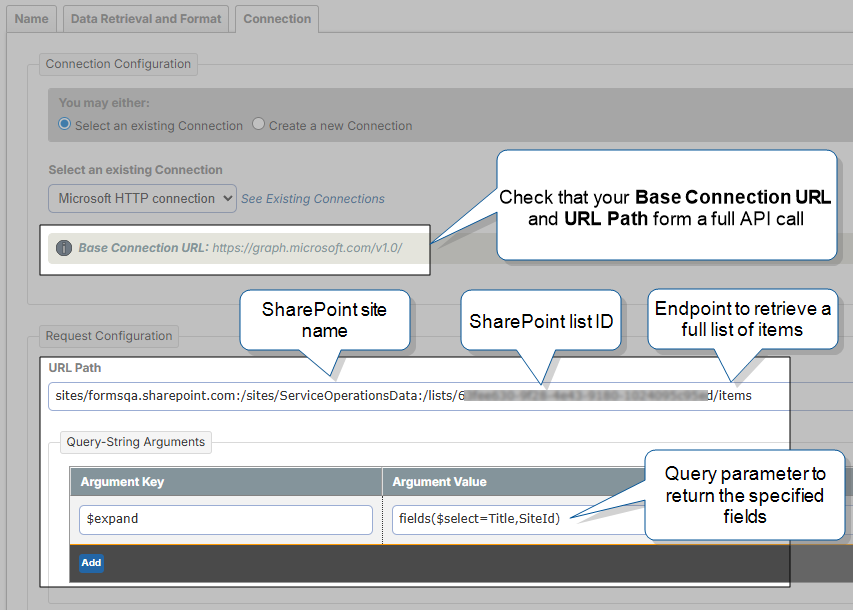
-
-
Select Create.
Tip:TrueContext offers a standard Microsoft SharePoint List Data Source that you can use to fetch data from your SharePoint lists. To use it, you need a Microsoft 365 Connection. For this recipe, we use an HTTP Data Source so that we can use the same Connection for both the standard and On-Demand Data Sources.
Create an On-Demand HTTP GET Data Source
-
Go to Forms & Integrations > Data Sources > CREATE DATA SOURCE > HTTP GET.
-
Enter a Name. Name the Data Source SharePoint Issues List.
-
Select the option to Enable on-demand data retrieval on your connected devices. This makes the Data Source an On-Demand Data Source.
-
On the Data Retrieval and Format tab, select JSON as the Data Format.
-
On the Connection tab:
-
Select your HTTP Connection to Microsoft Graph.
-
Enter the API endpoint as the URL Path using the following format:
sites/yourdomain.sharepoint.com:/sites/{SiteName}:/lists/{listId}/itemsTip:Enter the list ID of your Issues list. To find the list ID, go to List Settings. You can find the list ID in the URL.
-
Enter
$expandas an Argument Key, andfields($select=Title,IssueId,CustomerId,SiteId,IssueType,Severity,Status,Summary)as an Argument Value in the Query-String Arguments section.Note:This query parameter returns the specified fields. You must include it so that the
SiteIdLookup column returns the column value and not the Lookup Id. -
Enter
$filteras an Argument Key, andfields/SiteId/LookupValue eq '{{SiteID}}'as an Argument Value in the Query-String Arguments section. This filters the list by the Site ID.Tip:-
{{SiteID}}is the On-Demand Data Source parameter. You’ll map{{SiteID}}to the Site Name question when you set up the form. -
SharePoint Lookup fields expose two values: a numeric ID (LookupId) and the text value (LookupValue). Using LookupValue in the filter matches against the site ID text (for example, SITE-7781) rather than an internal numeric key.
-
The following image shows the On-Demand Data Source Request Configuration setup.
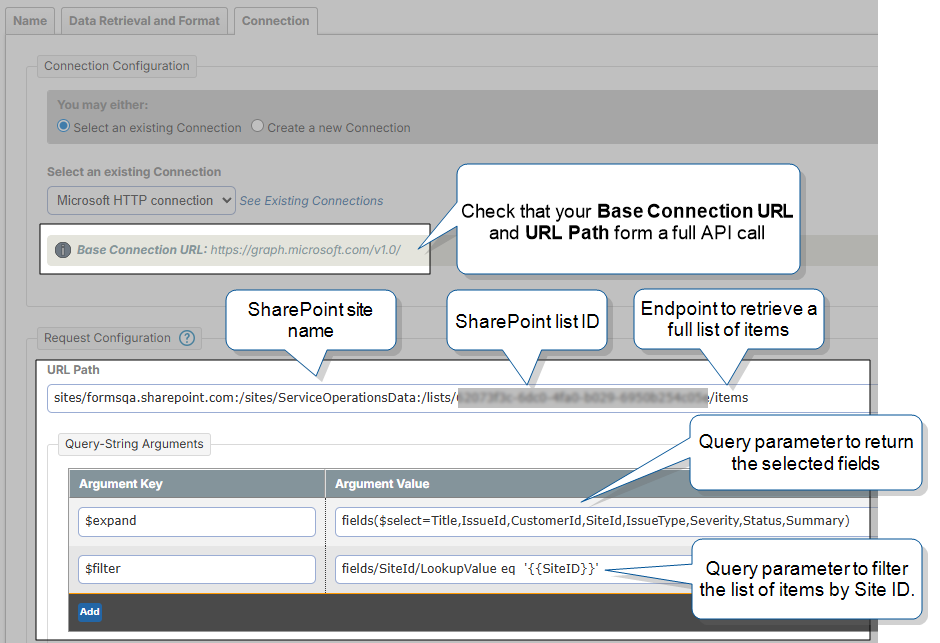
-
-
Test your request.
-
Select TEST FETCH.
Result: The Test Fetch window opens.
-
Enter a value for the SiteID parameter. For this example, enter SITE-7781.
-
Select Fetch.
Result: The window shows the results of the fetch in a table.
Info:- You must execute a successful fetch with results before you can save the Data Source.
- If the fetch fails, the Test Fetch window shows you the error message returned by the third-party API system. For more details about troubleshooting an On-Demand Data Source, go to Set Up On-Demand Data Sources: Troubleshoot On-Demand Data Sources
-
-
Select Create.
Set up your form
Note:As part of this recipe, you create two questions that have different purposes. The Site Name question provides the Site ID to filter the API request. The Push Issues question holds the Site ID value and receives the filtered list of issues. Then, it pushes the issues to the repeatable section. Both questions are required for the recipe to work.
Add a Site Name parameter question
-
From the Forms & Integrations menu, create or edit a Mobile App form.
-
To create a new form:
Forms & Integrations > Create New Form > Build a Mobile Form
Enter a name and description, and then save the form.
-
To edit a form:
Forms & Integrations > List Forms > FormName > Edit Form
where FormName is the form that you want to edit.
-
-
Create a Dropdown question (ADD A QUESTION > Dropdown).
-
Enter Site Name as the Question Text.
-
On the OPTIONS tab:
-
Select Use Data Source for Options as the Option Type.
-
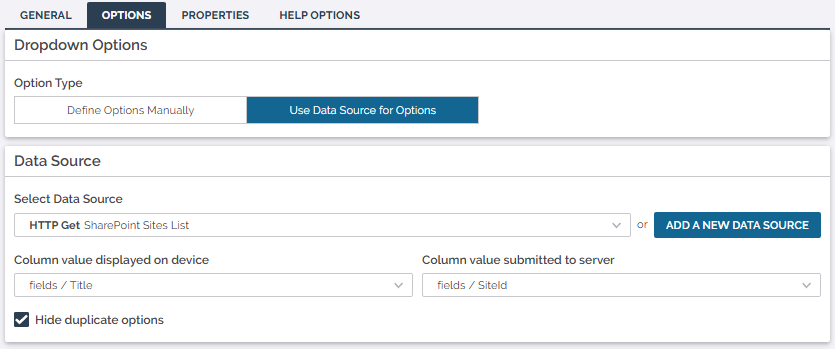
Select the HTTP Get SharePoint Sites list you created as the Data Source.
Tip:The Column value displayed on device is the value the mobile user sees when filling out the form. The Column value submitted to server is what the system stores.
-
Select fields / Title as the Column value displayed on device.
-
Select fields / SiteId as the Column value submitted to server.
The following image shows the setup of the question options.
-
-
Select SAVE.
Add an Issues Repeatable Section
-
On the bottom of the page, select ADD A SECTION > Repeatable. This section will contain open issues related to the site.
-
Name the section Issues.
-
Select SAVE.
Tip:You’ll add questions to the Repeatable section in the section Add a Push Issues On-Demand question.
Add a Push Issues On-Demand question
-
Create a Dropdown question (ADD A QUESTION > Dropdown).
Note:Place the Question in a regular section
A Regular Section is a set of related questions grouped together for easy reference. The data captured is “non-repeating”. That is, field users enter a single instance of each answer. before the Issues Repeatable section. -
Enter Push issues as the Question Text.
-
Optionally, select Hidden on device in the Restrictions sections. Mobile users don’t need to interact with this question.
-
On the OPTIONS tab:
-
Select Use Data Source for Options as the Option Type.
-
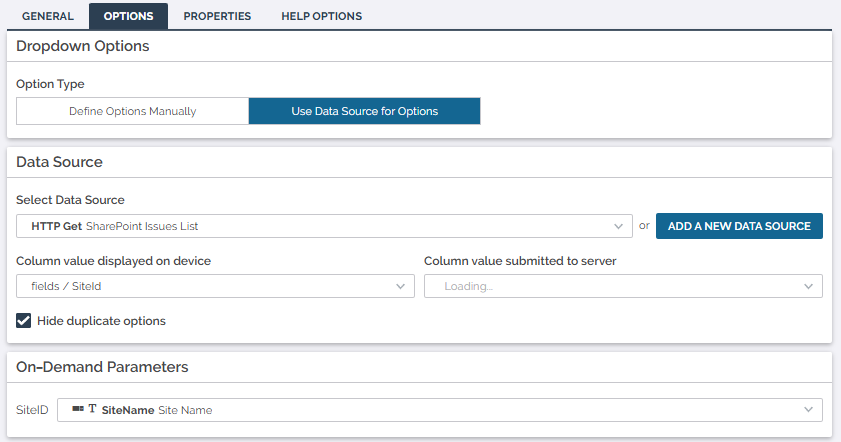
Select the HTTP Get SharePoint Issues list you created as the Data Source.
-
Select fields / SiteId as the Column value displayed on device.
-
In the On-Demand Parameters section, select the Site Name question you created as the SiteID parameter.
The following image shows the question options setup.
-
-
On the Push Data to Other Questions section:
-
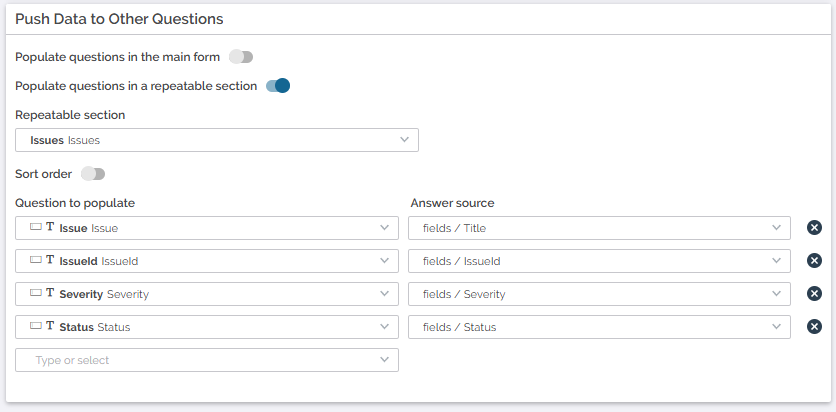
Select the option to Populate questions in a repeatable section.
-
Select Issues as the Repeatable section.
-
In the Question to populate, create new questions and map them to columns from the SharePoint list as follows:
Question to populate Answer source Issue fields / Title IssueId fields / IssueId Severity fields / Severity Status fields / Status Tip:To create the questions, type the name of the question in the Question to populate field and select the Enter key.
The following image shows the setup for the Push Data to Other Questions section.
-
-
Select SAVE.
Configure the Site Name question to push data
-
Select the Site Name question to edit it.
-
Go to the OPTIONS tab.
-
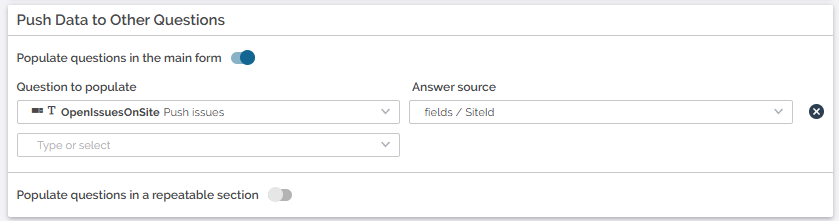
Switch on the option to Populate questions in the main form in the Push Data to Other Questions section.
-
Under Question to populate, select the Push issues On-Demand question.
-
Under Answer source, select fields / SiteId.
The following image shows the setup for the Push Data to Other Questions section.
-
Select SAVE.