Set up an HTTP Connection to Microsoft Graph
The out-of-the-box Microsoft 365 Connection in TrueContext makes it easy to work with SharePoint and OneDrive. For advanced scenarios, such as accessing Microsoft Graph endpoints or retrieving data on demand, you can set up a custom HTTP Connection to Microsoft Graph. This recipe walks you through how to set up an HTTP Connection to Microsoft Graph.
Contents
Available on all tiers:
Prerequisites
-
You must be a TrueContext Admin user.
-
You must meet the prerequisites to Register an application with the Microsoft identity platform.
-
You must have a Global Administrator role in Microsoft to grant permissions to your application.
High-level process
| System | Action |
|---|---|
| Microsoft Entra | Register TrueContext as an application. Create a client secret and grant API permissions. |
| TrueContext | Create an HTTP Connection using the credentials generated in Microsoft Entra. |
Register TrueContext as an application in Microsoft Entra
Note:These steps are based on our test environment and might not exactly match yours. The important thing is that your Entra setup results in a registered application, a client secret, and the correct API permissions. Your organization's Entra administrator or Microsoft Entra documentation can help if your workflow differs.
-
Sign in to Microsoft Entra.
-
Create a new app registration:
-
On the side bar, select App registrations.
-
Select New registration. Set up the application:
-
Enter a Name.
-
For Supported account types, leave the default option Accounts in this organizational directory only.
-
For Redirect URI, select the option Web, and then enter the following Redirect URI:
https://live.prontoforms.com/security/oauth/connections/httpoauth
-
-
Select Register.
-
-
Create a client secret:
-
Go to Certificates & secrets and select New client secret.
-
Enter a Description.
-
Select an expiration.
Info:To avoid service disruptions, you must rotate the client secret before it expires.
-
-
Select Add.
Result: The page shows a Value and a Secret ID. You’ll use the Value to authenticate in TrueContext.
Note:Store the Value in a secure location before you leave the page. Once you navigate away, you can’t see the value again, and you will have to create a new secret.
-
-
Set your API permissions:
-
Go to API permissions > Add a permission > Microsoft Graph.
-
Select Delegated permissions.
-
Under OpenId permissions, select offline_access.
-
Select all the permissions you want to give the connection. For example, to connect with SharePoint, you can set the following permissions:
Permission category Permission name Files Files.Read.AllSites Sites.Read.AllInfo:Set enough permissions for your connection to access necessary data. The Microsoft Graph documentation provides a detailed list of available permissions.
-
Select Add permissions.
-
Create an HTTP Connection using the credentials generated in Microsoft Entra
-
In the TrueContext Web Portal, go to Forms & Integrations > Connections > CREATE CONNECTION > HTTP Connection.
-
Enter a Name for your Connection.
-
Specify the FormSpaces that can use the Connection in Selected FormSpaces allowed to use this Connection.
-
Enter the Microsoft Graph Base Connection URL:
https://graph.microsoft.com/v1.0. -
Select OAuth 2.0 as the Authentication Scheme. Set up your OAuth 2.0 Configuration:
Field Configuration Grant Type Select Authorization Code. Authorization Code URL In Microsoft Entra, open the application you registered. Go to Overview > Endpoints. Microsoft Entra opens a list of endpoints. Copy the OAuth 2.0 authorization endpoint (v2). Access Token URL From the list of endpoints in Microsoft Entra, copy the OAuth 2.0 token endpoint (v2). Client ID Go to your application’s Overview page in Microsoft Entra. Copy the Application (client) ID. Client Secret Enter the Value (not the Secret ID) of the client secret you created. Scopes Enter the list of permissions you assigned to your application separated by a space. 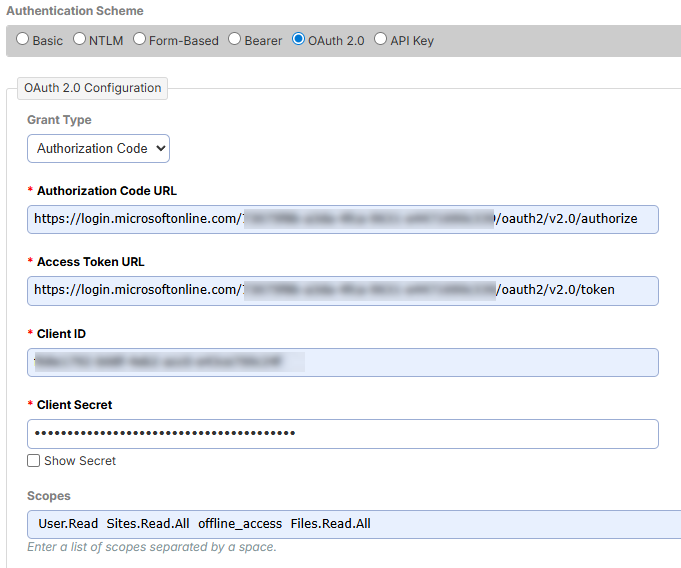
-
Select Connect.
Result: The system opens a window where you can sign in to your Microsoft account and grant permissions for the connection.
-
Select Create.
Result: You can use this connection to set up HTTP GET Data Sources and HTTP Data Destinations.
Rotate the client secret
Client secrets in Microsoft Entra expire after a set period of time. To avoid service disruptions, rotate the client secret before it expires. To do that:
-
In Microsoft Entra, create a new client secret.
-
Go to Certificates & secrets and select New client secret.
-
Enter a Description.
-
Select an expiration.
Note:Take note of the new expiration date.
-
-
Select Add.
Result: The page shows a Value and a Secret ID. You’ll use the Value to authenticate in TrueContext.
Note:Store the Value in a secure location before you leave the page. Once you navigate away, you can’t see the value again, and you will have to create a new secret.
-
-
In TrueContext, reconnect all related Connections
 A Connection is an integration point that's used to link a TrueContext Data Source or Data Destination to an external service to import or export data. Data Destinations and Data Sources that share the same external service can also share the same Connection. using the new credentials.
 -
Once you test all your Connections, delete the old credentials in Microsoft Entra.