View and Manage Drafts in the Web Portal
With Work Anywhere A feature that automatically syncs a mobile user's saved drafts across the devices they're signed in to., mobile users' saved drafts sync to records in the Web Portal.
Available on all tiers:
Contents
Prerequisites
To view drafts in the Web Portal, you must be:
-
an Admin user, or
-
a User with Can View or Can Manage Assignments FormSpace
FormSpaces are where forms are stored and organized in the TrueContext Web Portal. A TrueContext Team may have multiple FormSpaces, depending on their needs. Admins can set FormSpace permissions to control which users have access to the forms in that FormSpace. permissions.
Approvers who have requested changes on a record can view that record's draft through their existing approval rights, without the FormSpace permissions above.
View ongoing drafts
Submission list pages
On the All Form Activity page and the Submissions by Form page, records with an in-progress draft show a pencil icon in the Workflow State column. Select the pencil icon to open the draft.
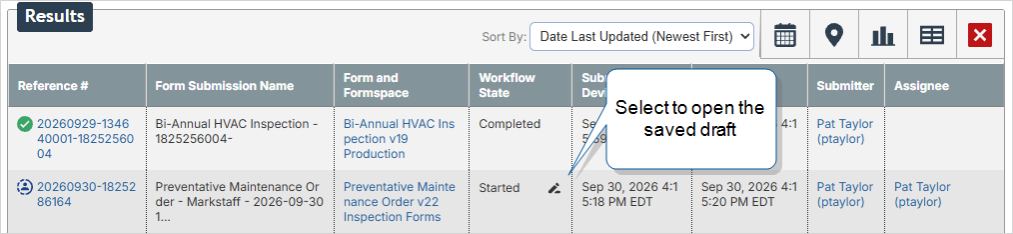
To narrow the list to records that have a draft, select Search Options and use the Draft Status filter.
Filter options:
-
Any: shows records regardless of draft status.
-
Has draft: shows only records that have an in-progress draft.
-
No draft: shows only records without a draft.
Submission details page
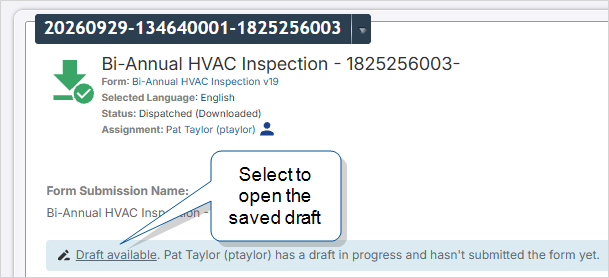
When you open a record that has a draft, the submission details page shows a Draft available indicator. A banner describes that a draft is in progress. Select the banner's Draft available link to open the draft.
Form Submission version history
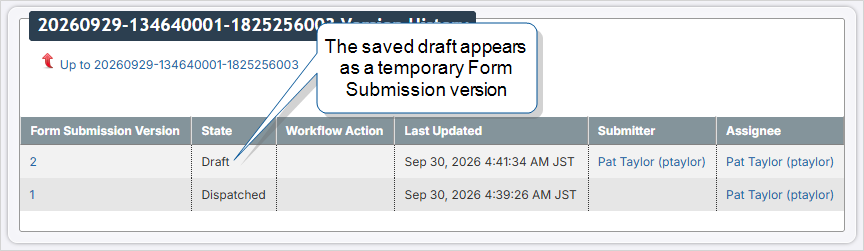
While a record has a draft, the latest saved draft appears as a temporary Form Submission version on the version history. It disappears from the version history once the mobile user submits the form. For details, go to View Form Submission Versions.
Actions on drafts
-
Open the record to view the saved draft.
-
Reassign
Assigning and reassigning control which users are responsible for dispatched records and for records in the Started state that have a draft. A dispatcher with the "Can Manage Assignments" FormSpace permission can assign a record to a user or group and reassign it if the original assignee is unavailable. Field users can also claim unassigned records from the Group Inbox. the record to another user. For details, go to Reassign a record that has a draft. -
Export the record. Exports show submitted values, except for records in the Started state that haven't been submitted. For details, go to Values in exports and outputs when a draft exists.
Reassign a record that has a draft
When you reassign a record that has a draft, the last synced draft stays with the record. The new assignee can access the draft and continue the work. Any changes the previous assignee hasn't synced yet are lost.
States you can reassign
You can reassign records in the following states:
- Started, only to a user, not to a group or FormSpace
- Dispatched
- Incomplete (TrueContext Teamwork TrueContext Teamwork is a feature that enables mobile users to transfer incomplete forms for other users to complete as part of a multi-user workflow. This can be useful for jobs that require someone else's expertise or that span multiple shifts.)
- Changes Requested (Approval Workflows Approval Workflows enforce a review of submitted records at the form level. Approvers with the required FormSpace permission review each submission and either approve it or send it back to the field user with requested changes. A record that passes review shows the Completion Result "Approved".)
You can't reassign records in the Reopened state.
Reassign a Started record
To reassign records, you must be an Admin user, or a User with the Can Manage Assignments FormSpace permission.
To reassign a record in the Started state:
-
Go to Data & Analytics > All Form Activity.
Result: The All Form Activity page opens.
-
Do one of the following:
-
Hover over the record, and then select Reassign.
-
Select the Reference # to open the record. Then, hover over the arrow next to the reference number and select Reassign.
Result: The Reassign page opens.
-
-
From the Send to list, select a user.
-
On the Reassign page, select Reassign.
Result: The Confirm Assignment Change dialog opens.
-
To complete the reassignment, in the Confirm Assignment Change dialog, select Reassign.
Result: The record stays in the Started state, and the draft moves to the new assignee.
Reassign a Started record with the API
To reassign a record in the Started state with the API, use the following endpoint. You can assign Assigning and reassigning control which users are responsible for dispatched records and for records in the Started state that have a draft. A dispatcher with the "Can Manage Assignments" FormSpace permission can assign a record to a user or group and reassign it if the original assignee is unavailable. Field users can also claim unassigned records from the Group Inbox. the record only to a user.
Drafts on the Mobile App after reassignment
On the Mobile App, the new assignee finds a reassigned Started record in their Drafts box. A reassigned Dispatched record that has a draft appears in both their Inbox and their Drafts box. The draft no longer appears on the previous assignee's device.
Values in exports and outputs when a draft exists
The values that appear in exports and outputs depend on what versions exist for the record:
-
If the record has both a submitted version and a draft, the submitted values appear.
-
If the record has only a draft, for example a record in the Started state, the draft values appear.
Incomplete TrueContext Teamwork submissions also count as submitted versions for this rule.
This rule applies to:
-
CSV exports and custom CSV documents
-
Output documents (PDF, Word, HTML, and Excel)
-
JSON and XML documents, and JSON or XML sent by Data Destinations
A Data Destination specifies where to send data from a submitted form. You can use Data Destinations to automate data sharing and storage, routing data to a specific service (such as email or cloud storage) in several different formats. -
Analytics answers, dates, and metadata
-
DREL
Data Reference Expression Language (DREL) is used to get form data and metadata and add it to a string, such as dates, usernames, or answers to questions in forms. variable resolution -
API responses that return submission data