Work Anywhere Overview
With Work Anywhere A feature that automatically syncs a mobile user's saved drafts across the devices they're signed in to., drafts sync across a mobile user's signed-in devices. A technician can start an inspection on a phone and pick it up later on a tablet.
Available on all tiers:
Contents
How drafts sync between devices
A draft moves from one device to another as follows:
-
On Device A, the mobile user saves a draft. Then, the Mobile App uploads it automatically. The mobile user doesn't need to reconcile for the draft to upload.
-
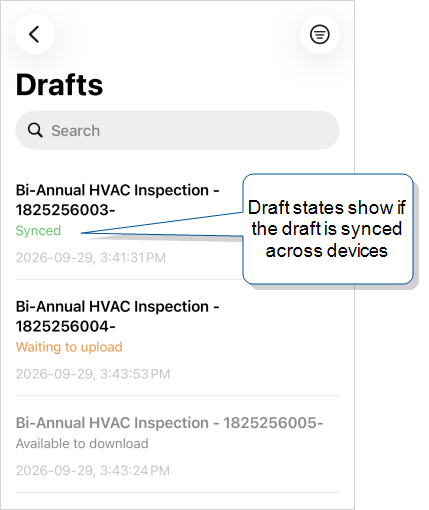
On Device B, the mobile user reconciles. The draft appears in the Drafts box with the status Available to download.
-
The mobile user selects the draft on Device B. The Mobile App downloads and opens the draft. The draft includes all the answers and attachments from Device A.
Each draft in the Drafts box has a status label such as Waiting to upload or Synced. The label indicates whether a draft is up to date across the mobile user's devices. The status Available to download appears only the first time a draft reaches a device. After the first download, the Mobile App syncs updates automatically on each reconcile and the status stays as Synced.
Warning:Download a draft before going offline. On another device, selecting a draft with the status Available to download pulls the full draft, including all answers, images, and attachments. If you select the draft while offline, the download can't complete and you can't continue the draft until you reconnect.
Note:In the Web Portal, the latest saved draft appears as a temporary Form Submission version while the record has a draft. It disappears from the version history once the mobile user submits the form.
Limitations
-
Data Passthrough. Work Anywhere doesn't work with forms that have Data Passthrough turned on. For those forms, drafts stay on the device where they were saved and don't sync to other devices.
-
App‑to‑App callbacks. When a mobile user opens a form through an App‑to‑App call and saves a draft, the callback fires at that moment. The App‑to‑App session ends there, not at the final submit. Continuing the draft on another signed-in device and submitting it doesn't trigger the original callback.
Info:For details on App‑to‑App callback timing, go to App‑to‑App Actions.
When to save a draft vs. when to Transfer to Myself
Saving a draft and Transfer to Myself can both move an in-progress form from one device to another, but they serve different needs. The following table describes which approach to choose depending on your workflow.
| Criteria | Work Anywhere | Transfer to Myself |
|---|---|---|
| What moves between devices | A saved draft. Drafts haven't been submitted. | An incomplete submission. Transferring submits the record as an incomplete submission. |
| Best for | Continuing your own draft on another signed-in device. | Moving your work and triggering Data Destinations A Data Destination specifies where to send data from a submitted form. You can use Data Destinations to automate data sharing and storage, routing data to a specific service (such as email or cloud storage) in several different formats. before the record is complete. |
| How a mobile user starts it | Save the draft. The Mobile App uploads it automatically. | Select Transfer, then select Myself. |
| Where it appears next | The Drafts box on every signed-in device. | The Inbox on every signed-in device. |
| Data Destinations | Not applicable. A draft save doesn’t trigger Data Destinations. | Data Destinations set to execute for incomplete records trigger on transfer. |
| Tier | All tiers. | Intelligent and Elite. |
| Form requirement | None. Applies to all forms in a team. | TrueContext Teamwork TrueContext Teamwork is a feature that enables mobile users to transfer incomplete forms for other users to complete as part of a multi-user workflow. This can be useful for jobs that require someone else's expertise or that span multiple shifts. turned on for the form. With Teamwork, users can also transfer records to other users. |
If mobile users only need to continue their own drafts across their devices, Work Anywhere already covers it, with nothing to set up. Use Transfer to Myself when Data Destinations must trigger on the incomplete record.
Info:For details on setting up and using Transfer to Myself, go to Transfer to Myself.
Best practices when saving drafts
- Make sure the draft is done uploading before switching devices. Wait for the status to change to Synced before opening the draft on another device. That way the other device pulls the latest content.
- Reconcile The term "reconcile" refers to a send/receive action between the mobile app and the TrueContext server. This synchronizes new form versions, data sources, and dispatches from the Web Portal to the mobile app to ensure that mobile users are working with up-to-date resources. This also synchronizes new form submissions from the mobile app to the Web Portal to ensure that work completed by a mobile user gets properly submitted and sent through data destinations. A reconcile can be manually or automatically initiated and requires network connectivity. When Work Anywhere is turned on for a form, reconciliation also delivers saved drafts from the mobile user's other devices. before opening a draft on another device. Reconciling makes sure this device has the latest version of the draft.
- Open drafts before going offline. If you plan to work offline on a draft from another device, open it while you're still online. Opening the draft downloads it so you can work on it without a network connection.
- Work on one device at a time. Even after the upload finishes, don't open the same draft on two devices at once. Save on one, then open on the other.
- Watch the status labels. The labels Waiting to upload, Synced, and Available to download tell you where the draft is right now. When in doubt, check the label.
- Keep the Mobile App updated on all your devices. Make sure every device has the latest Mobile App version.