Steps to Transfer to Myself on the Mobile App
With Transfer to Myself, mobile users can submit incomplete TrueContext Teamwork TrueContext Teamwork is a feature that enables mobile users to transfer incomplete forms for other users to complete as part of a multi-user workflow. This can be useful for jobs that require someone else's expertise or that span multiple shifts.-enabled forms while keeping the record assigned to them. They transfer the form and select Myself. This makes the incomplete record visible to supervisors in the TrueContext Web Portal The TrueContext Web Portal is a web application used to manage security settings, forms, FormSpaces, other users, Data Sources, and Data Destinations.. It also triggers Data Destinations A Data Destination specifies where to send data from a submitted form. You can use Data Destinations to automate data sharing and storage, routing data to a specific service (such as email or cloud storage) in several different formats. set to execute for incomplete records.
Available on the Intelligent and Elite tiers:
Contents
Prerequisites
-
You must be a TrueContext Mobile Device user with Can Submit FormSpace
FormSpaces are where forms are stored and organized in the TrueContext Web Portal. A TrueContext Team may have multiple FormSpaces, depending on their needs. Admins can set FormSpace permissions to control which users have access to the forms in that FormSpace. permissions. -
Your Mobile App version must be 25.2 or later.
-
The form you want to transfer must have the TrueContext Teamwork setting Allow users to transfer incomplete forms directly to another user enabled (Edit Form > Settings > Workflow Settings > TrueContext Teamwork).
Steps to Transfer to Myself
-
Open a form that has TrueContext Teamwork enabled.
-
Answer the questions as you normally would. You can leave any questions, including required questions, unanswered.
-
When you’re ready to continue work on another device, transfer the form.
The way that you transfer the form depends on your device.
-
iOS iPhone: Select Back, and then select Close > Transfer.
-
iOS iPad and macOS: Select Close > Transfer.
-
Android and Windows: Select the action menu, and then select Transfer.
Result: The app opens a list of options to transfer the form.
-
-
Select Myself > Send.
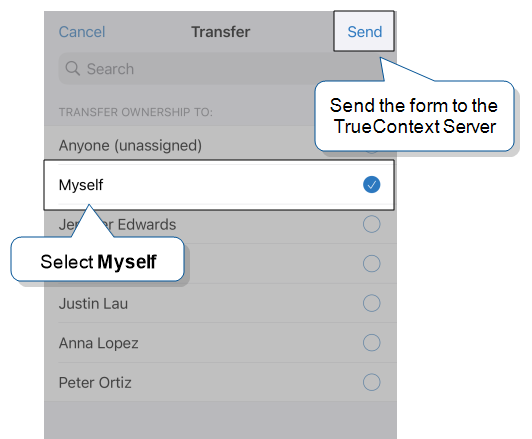
Result: The system:
-
Uploads the incomplete form.
-
Triggers Data Destinations set to execute for incomplete records.
-
Dispatches the incomplete form as a new Inbox item.
-
-
(Optional) On the TrueContext Mobile App on another device, open your Inbox. Open the form and continue working on it.
Note:After you transfer a form to work on another device, make sure you only work on it on one device at a time. You must transfer the form to yourself each time you need to switch devices. If the same form is submitted from multiple devices, the system only keeps the first submission.