Scan a Document to PDF
Document scanning uses your mobile device’s camera to capture a paper document and convert it into a single PDF. The PDF combines all the pages you capture, and optical character recognition (OCR) makes its text searchable. In the Mobile App, you attach the PDF to a File Upload question instead of photographing each page separately. In a Document Editor question, the scanned PDF opens in the editor for annotation.
Available on the Intelligent and Elite tiers:
Note:Document scanning works in the Mobile App on Android and iOS devices. It doesn’t work on macOS or Windows.
Contents
Scan a document from a File Upload question
The steps and screenshots in this section show the iOS version of the Mobile App.
-
In the Mobile App, open the form and select a File Upload question.
Result: The Mobile App shows the input options for the question.
-
To open the scanner, select Scan Document.
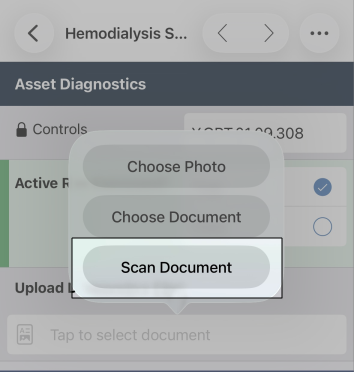
Result: The camera view opens.
-
Position the page in the camera view and hold your device steady until the scanner captures the page automatically. To capture it manually, select the capture button.
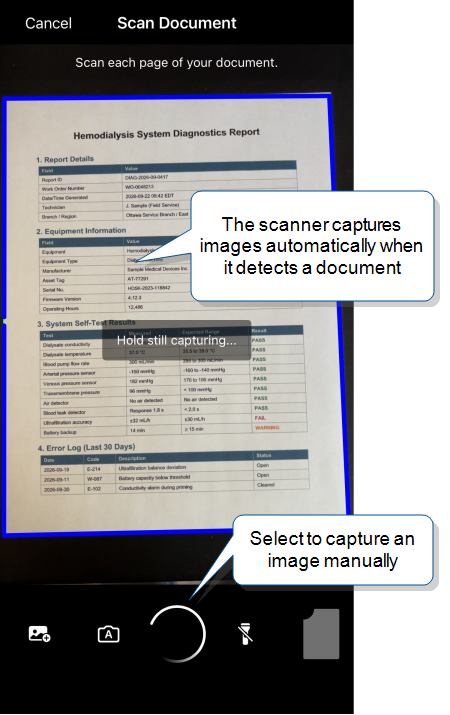
Result: The scanner shows the captured page.
-
To keep the page, select Use Scan. To capture the page again, select Retake.
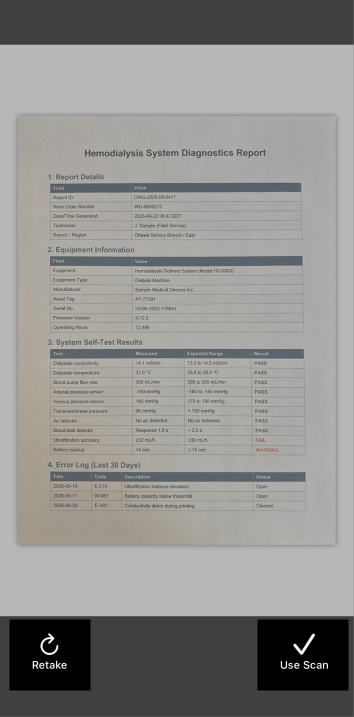
Result: The camera view returns, with a thumbnail of the pages you captured.
-
Repeat steps 3 and 4 for each remaining page.
-
To open the review screen after you capture all the pages, select the page thumbnail.
Result: The review screen shows the number of pages you captured.
-
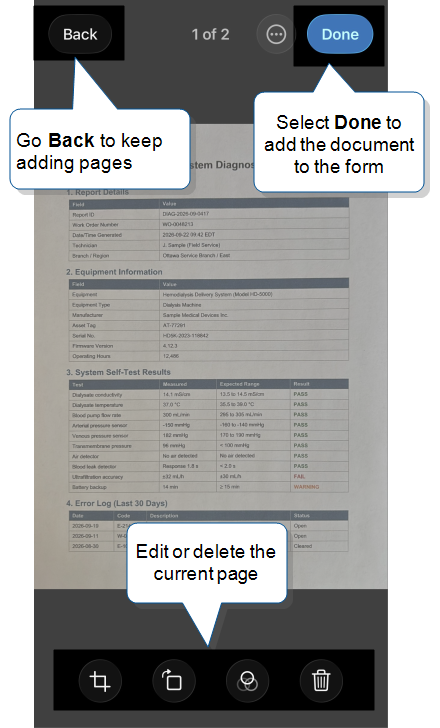
(Optional) Before you create the PDF, use the review screen to:
- Scroll left or right to go to another page.
- Crop, rotate, or delete the current page, or apply a filter to it.
- Change the page order (three-dot menu > Reorder).
- Scan more pages (Back).
- Discard all the pages and close the scanner (three-dot menu > Delete All Scans > Delete).
-
To create the PDF, select Done.
Result: The Mobile App converts the pages into a searchable PDF and adds it to the File Upload question. The conversion can take a few moments.
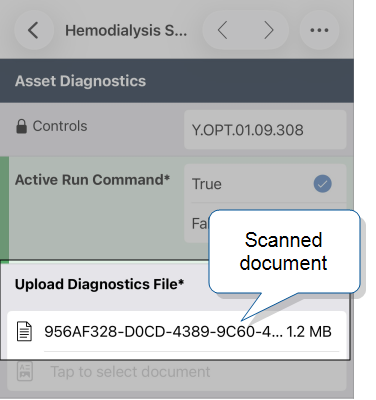
Note:Each scanned PDF counts toward the form’s maximum submission size, which is 2 MB by default. The topic Maximum submission size describes how to change the limit.
Tip:The Mobile App gives the PDF a generated file name. To give it a name that’s easier to recognize, select the file name, and then select Rename. The new name shows only in the Mobile App, because the server generates a new file name when you submit the form.
-
To preview the PDF, select the file name, and then select Preview.
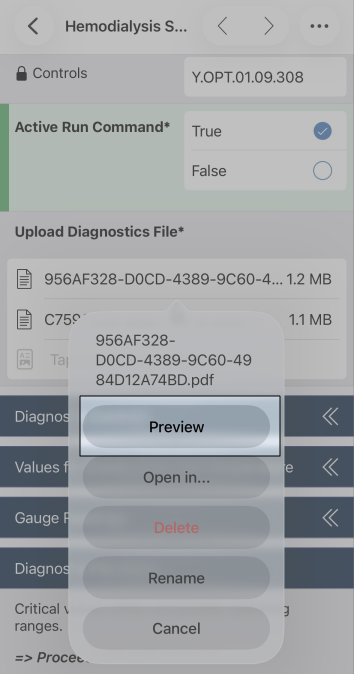
Result: The PDF opens in a preview, where you select and copy text from the scanned document.
Scan a document into a Document Editor question
Scanning into a Document Editor question works like scanning into a File Upload question, except that the PDF opens in the editor for annotation.
-
In the Mobile App, open the form and select the Document Editor question.
-
To open the scanner, select Scan Document.
Result: The camera view opens.
-
Capture and review the pages the same way as for a File Upload question, and then select Done.
Result: The Mobile App converts the pages into a searchable PDF and opens it in the editor.
-
Draw or type on the PDF, and then save your annotations.
Troubleshooting
The Scan Document option doesn’t appear on every question or device, and OCR accuracy depends on the language, writing, and page orientation.
Why doesn’t Scan Document appear in the input options?
The Scan Document option doesn’t appear when the File Upload question uses the What is the Router Setup Property? property. Router Setup routes data from JSON, XML, and text files only. To scan documents, the form needs a File Upload question without Router Setup. If the form doesn’t have one, contact your form designer.
On a Document Editor question, Scan Document appears only when the question accepts PDFs from the device.
Document scanning also isn’t available in the Mobile App on macOS or Windows.
Which languages does OCR support?
OCR reads languages that use the Latin alphabet and Arabic numerals. It doesn’t recognize other writing systems.
Does document scanning work with handwriting?
Yes, but OCR reads printed text in standard fonts more accurately than handwriting. It can misread handwritten characters, for example reading a lowercase L as a pipe character or a B as a 3. For handwritten documents, check the searchable text for errors before you rely on it.
Why doesn’t OCR reliably read sideways or upside-down pages?
OCR doesn’t reliably read text on a page that’s sideways or upside down in the captured image. To fix the page, select the rotate icon on the review screen before you select Done.