Add Users
Available on all tiers:
About
Each TrueContext account is intended for use on one mobile device. To use TrueContext on more mobile devices, add another user. When you add a user, you can control how much access users have to the web portal. Users on your team can also access your mobile forms in the app.
Watch the video below to learn how to add a user.
Add a User
-
Under the Users & Groups tab, select Create User.

-
In the Account tab, fill in the new user's Username, Email Address, and Name. Please use a specific email address, as this is where the welcome email will be sent.
Tip:If your team uses Multi-Factor Authentication, TrueContext sends a 6-digit authentication code to the user’s email address each time they sign in. If you want to set up MFA
 Multi-Factor Authentication (MFA) is an added security measure for users who sign in with a native login, where they enter their credentials directly into the Mobile App or TrueContext Web Portal. MFA is tied to the user's email address. A team can use SSO and MFA together. For example, employees might sign in with SSO, while third-party contractors use a native login with MFA., ensure every user on your team has a valid email address associated with their account.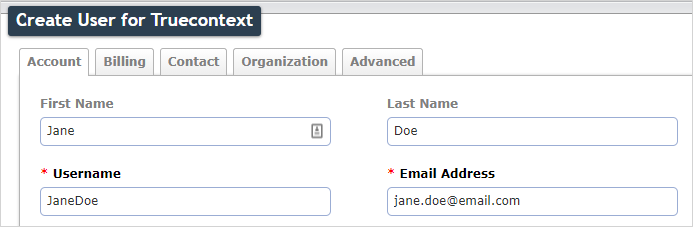
-
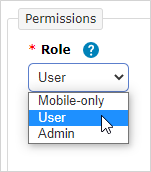
Under the same heading, assign the user a Role. This will determine what control and how much access users have to the web portal.
-
Also under Account, assign
Assigning and reassigning control which users are responsible for dispatched records. A dispatcher with the "Can Manage Assignments" FormSpace permission can assign a record to a user or group and reassign it if the original assignee is unavailable. Field users can also claim unassigned records from the Group Inbox. the user a Group. The user's Group determines what forms users have access to in the mobile app.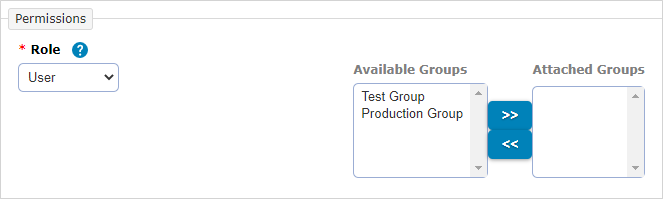
-
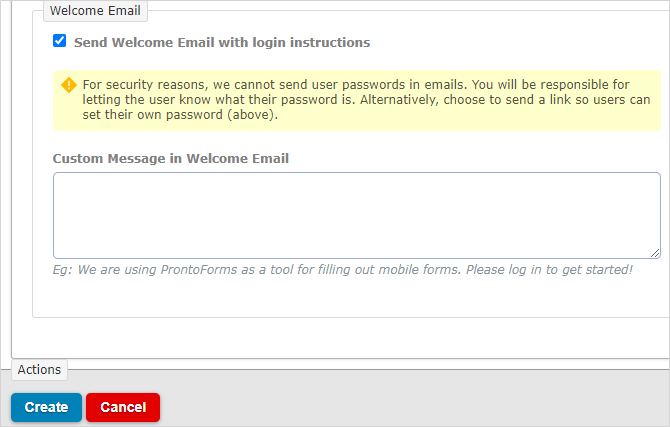
You can select Send Welcome Email on Create, which will notify the user of their new account. For security reasons, we cannot send user passwords in emails. If you choose Set a password now, you will be responsible for letting the user know what their password is. Alternatively, choose to send a link so users can set their own password.
Once you're satisfied, scroll to the bottom of the page, and select Create to save the user.
Note:The password link in the email expires after seven days.
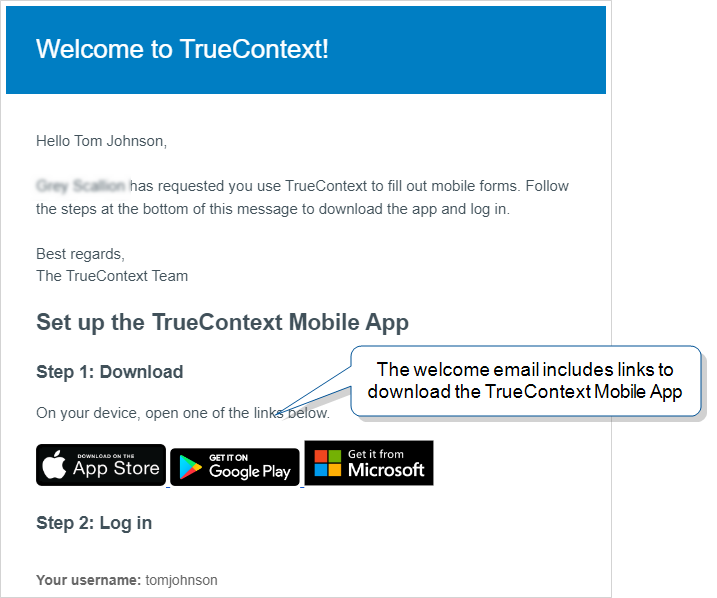
 Note: The welcome email might go to the user’s spam or trash folders. If the user can’t find the welcome email, check that their email address is correct. The welcome email should look like the following image: