Set Up Multi-Factor Authentication
Multi-Factor Authentication Multi-Factor Authentication (MFA) is an added security measure for users who sign in with a native login, where they enter their credentials directly into the Mobile App or TrueContext Web Portal. MFA is tied to the user's email address. A team can use SSO and MFA together. For example, employees might sign in with SSO, while third-party contractors use a native login with MFA. (MFA Multi-Factor Authentication (MFA) is an added security measure for users who sign in with a native login, where they enter their credentials directly into the Mobile App or TrueContext Web Portal. MFA is tied to the user's email address. A team can use SSO and MFA together. For example, employees might sign in with SSO, while third-party contractors use a native login with MFA.) provides an extra layer of security for users signing into TrueContext. When a user signs in with their username and password, TrueContext requests an additional authentication method to verify the user’s identity. This topic describes how to set up MFA for your team in TrueContext. It also describes how to turn off MFA, and how MFA pairs with Single Sign-On A corporate login (also Single Sign-On or SSO) allows users to sign into the TrueContext Web Portal and apps by authenticating the user's login through an identity provider (IdP), such as Okta or OneLogin. Users must initiate SSO from the TrueContext Web Portal or Mobile App. (SSO A corporate login (also Single Sign-On or SSO) allows users to sign into the TrueContext Web Portal and apps by authenticating the user's login through an identity provider (IdP), such as Okta or OneLogin. Users must initiate SSO from the TrueContext Web Portal or Mobile App.).
Tip:Currently, email authentication is the only MFA method available in TrueContext.
Available on all tiers:
Contents
Prerequisites
-
You must be an Admin user to set up MFA.
-
Complete a preparedness audit to ensure your team can use MFA successfully. To use MFA:
-
Every user on your team must have a valid email address associated with their account. To check this:
-
Go to Users & Groups > Users > List Users.
Result: The system displays a list of all users on your team.
-
Hover over the arrow next to Users, and then select Export Users to CSV.
Result: The system generates a CSV file that lists information about every user on your team.
-
Update every user account that doesn't have an email address.
To change an email address, use one of these methods:
-
Team admins: Select Users & Groups to open the list of users, hover over the user row and select the update icon.
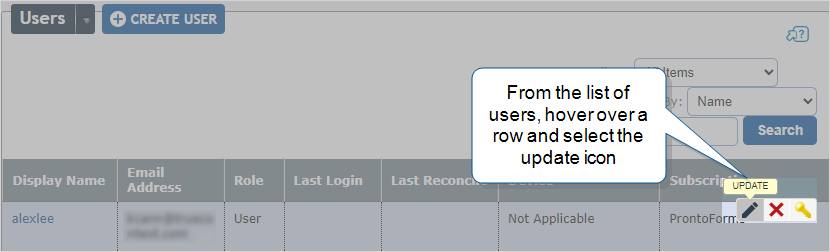
Result: This opens the Edit Account page where you can update the email address.
-
All users: In the TrueContext Mobile App, go to Settings > Account Details > User Information.
-
Third-party systems: Use the TrueContext REST API
The TrueContext REST API enables developers to update and manage data communicated between TrueContext and their external, third-party systems. Admins can call our API endpoints after they set up an API application and API Key. /api/1.1/users/{userId} endpoint.
-
Tip:If any users on your team do not have an email address and you try to set up MFA, a warning message displays. The message links to the same CSV report.
-
-
Field technicians must update to the latest version of the TrueContext Mobile App. MFA is not compatible with TrueContext versions earlier than 22.0.
-
Your organization must allow emails from TrueContext.
Note:The system delivers authentication codes by email. If your team can’t receive emails from TrueContext, they won’t be able to sign in and start work.The authentication email comes from donotreply@truecontext.com. Ensure your email service does not block this address. Additionally, ask your team to add the address to their safe sender list and modify their inbox rules. Otherwise, the email service might mark authentication emails as spam or junk.
-
Steps to set up MFA
Once you set up MFA for your team, users must enter an authentication code to sign into TrueContext. If a user enters the correct username and password, TrueContext sends a 6-digit code to the user’s email address. The user must enter the code to sign into their account.
Tip:When a new team is created, MFA is enabled by default.
-
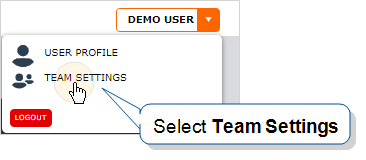
Go to User menu > Team Settings >Security.
-
Hover over the arrow next to Multi-Factor Authentication, and then select Enable.
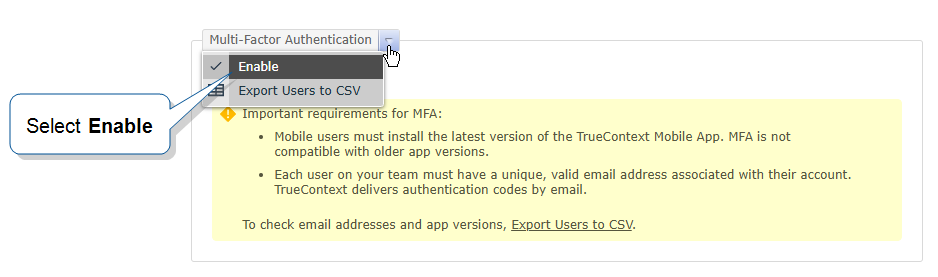
Result: Users on your team must enter an authentication code to sign into TrueContext.
Info:When a new user creates their password from the Welcome email, the system signs them into the Web Portal without MFA. The next time they sign in, however, MFA applies and they must enter an authentication code.
Turn off MFA
-
Go to User menu > Team Settings >Security.
-
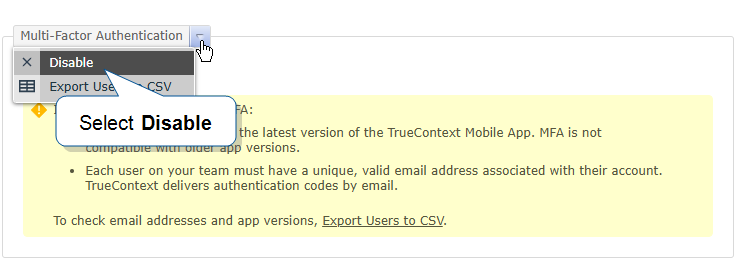
Hover over the arrow next to Multi-Factor Authentication, and then select Disable.
Result: Users on your team can sign into TrueContext with their username and password. They don’t need to enter a code.
MFA and SSO
The
Tip:Your organization can use both MFA and SSO within your TrueContext implementation. For example, you can set up employee users for SSO and third-party contractor users for MFA native login.